ArtiGrid Documentation
This page introduces the main ArtiGrid features with practical examples. Each section explains what the method does, when to use it, and how to apply it in a real project.
Get Started
ArtiGrid can be configured quickly using a simple configuration file. In this version,
baseUrl is no longer required because the library now detects paths automatically.
Example configuration
<?php
return [
    'db' => [
        'driver' => 'mysql',
        'host' => 'localhost',
        'port' => 3306,
        'dbname' => 'artigrid',
        'user' => 'root',
        'password' => '',
        'charset' => 'utf8'
    ],
    'forms' => [
        'required_all_fields' => true // form field required option
    ],
    'filter' => true,
    'search' => true,
    'add' => true,
    'refresh' => true,
    'actionsPosition' => 'right',
    'edit' => true,
    'view' => true,
    'checkbox' => true,
    'dropdownpage' => true,
    'pagination' => true,
    'delete' => true,
    'delete_multiple' => true,
    'mail' => [
        'host' => 'smtp.gmail.com',
        'username' => 'demo@test.com',
        'password' => 'your-password',
        'port' => 587,
        'secure' => 'tls',
        'from' => 'demo@test.com',
        'from_name' => 'ArtiGrid'
    ],
    'security' => [
        'auth_enabled'    => true,
        'validate_grid'   => true,
        'query_enabled'   => true,
        'debug'           => false,
    ]
];
?>
Core
The core of ArtiGrid is based on defining a data source and rendering it using different modes. By default, it generates a full CRUD interface, but you can also render specific forms depending on your needs.
render() to display it.
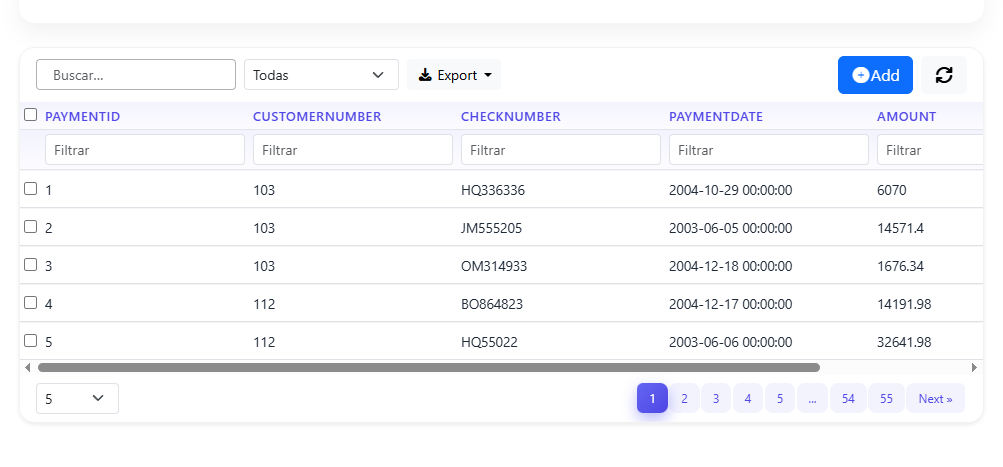
Basic Example
include 'D:\dev\laragon\www\artigrid\ArtiGrid.php';

$grid = new ArtiGrid();
$grid->table('users');

echo $grid->render();
Example result
Render Modes
ArtiGrid supports multiple rendering modes that allow you to display only specific parts of the CRUD system.
echo $grid->render();           // Full CRUD
echo $grid->render("insert");   // Insert form only
echo $grid->render("edit", 1);  // Edit record with ID 1
echo $grid->render("view", 2);  // View record with ID 2
echo $grid->render("select"); // Custom select / login formInsert Form Mode
ArtiGrid allows you to generate a standalone insert form using
render('insert').
This mode displays only the form for creating new records, without showing the grid. It is ideal when you want a dedicated page for data entry.
- Create separate pages for forms
- Build custom workflows
- Hide the grid and focus on input
Example
$grid = new ArtiGrid();

$grid->table('payments')
    ->template('bootstrap5')
    ->required(false)
    ->validation_required('customerNumber')
    ->validation_required('checkNumber');

echo $grid->render('insert');formFields() to control exactly
which fields are displayed in the form.
Fields
ArtiGrid lets you organize and customize fields so your forms become easier to read and more user-friendly. You can group fields, change field types, and even rename column labels without modifying your database.
Arrange Fields
$grid->fields_arrange('name,date,office', 'Group 1 - Names', true, false);Field Types (Select, Input, etc.)
$grid->setFieldType('status', 'select');
$grid->setSelect('status', ['Active', 'Inactive']);Column Rename
The colRename() method allows you to change how column headers
are displayed in the grid without modifying the database structure.
This is useful when your database uses technical names but you want more user-friendly labels in the interface.
$grid = new ArtiGrid();

$grid->table('products')
    ->template('bootstrap5')
    ->colRename('productName', 'Product Name') // rename column
    ->modal();

echo $grid->render();Relational Combobox
The combobox() method allows you to transform a field into a dropdown
(select) using either dynamic or static data sources.
It supports two types of sources:
- Database table: load options from another table by defining the value and label columns.
- Array: define a fixed list of options directly in your code.
In this example, the officeCode field is linked to the
offices table, using officeCode as the value and
city as the label. The lastName field uses a static array
as a simple dropdown source.
Example
$grid = new ArtiGrid();
$grid->table('employees')
    ->template('bootstrap5')
    ->unset('filter', false)
    ->modal();

$grid->combobox('lastName', [
    'Activate' => 'Activate',
    'Desactive' => 'Desactive'
]);

$grid->combobox('officeCode', 'offices', 'officeCode', 'city');

echo $grid->render();
Inline Edit
Inline editing allows users to modify table data directly without opening a separate form or modal window. This is especially helpful for fast edits and repeated updates.
ArtiGrid supports inline editing with different field types such as text, textarea, date, and
select/combobox inputs. In the example below, lastName is edited as a textarea and
officeCode is handled as a dropdown list. This improves user experience, speeds up
data entry, and helps enforce valid input options directly within the grid.
inlineEdit() to control its behavior:
mode→ editing granularity:'cell'edits one cell at a time.fields→ whitelist of fields that are editable inline. Only the listed columns become editable; all others stay read-only.
Example
$grid = new ArtiGrid();
$grid->table('employees')
    ->template('bootstrap5')
    ->unset('filter', false)
    ->unset('edit_multiple', false)
    ->setFieldType('lastName', 'textarea')
    ->setFieldType('officeCode', 'select') // Define field type for inline editing
    ->setSelect('officeCode', [
        "2" => 'Boston',
        "7" => 'London',
        "3" => 'NYC',
        "4" => 'Paris',
        "1" => 'San Francisco',
        "6" => 'Sydney',
        "5" => 'Tokyo'
    ])
    ->inlineEdit([
        'mode'   => 'cell',
        'fields' => ['lastName', 'officeCode']
    ]) // Activate inline editing, restricted to these fields
    ->combobox('officeCode', 'offices', 'officeCode', 'city')
    ->perPage(10)
    ->modal();

echo $grid->render();- Enables inline editing in
cellmode - Restricts editable columns to
lastNameandofficeCodevia thefieldswhitelist - Renders
lastNameas a textarea andofficeCodeas a dropdown while editing
Field Conditions
The fieldCondition() method allows you to create dynamic show/hide
rules for form fields without writing any JavaScript. Rules are defined in PHP
and automatically injected into the frontend via data-field-conditions.
When a condition is defined such as:
$grid->fieldCondition('email', 'officeCode', '==', 4, 'hide'),
ArtiGrid stores an internal rule indicating that the email field
depends on the value of officeCode. When the form is rendered,
these rules are converted into JSON and injected into the frontend. JavaScript
reads them, identifies the trigger field, and evaluates the rule in real time.
- ArtiGrid stores the rule internally and serializes it as JSON on the form element
- On load, JavaScript reads the conditions and evaluates them immediately
- Every time the user changes the trigger field, the rule is re-evaluated
- In edit mode, the condition is applied at form open time based on existing data — no user interaction required
Signature
$grid->fieldCondition(
    string $field,      // Field to show or hide
    string $dependsOn,  // Field that triggers the rule
    string $operator,   // ==, !=, >, <, >=, <=, in, not_in
    mixed  $value,      // Value or array to compare against
    string $action      // 'show' (default) or 'hide'
);
Example — Hide email when officeCode equals 4
$grid = new ArtiGrid();
$grid->table('employees')
    ->template('bootstrap5')
    ->fieldCondition('email', 'officeCode', '==', 4, 'hide');

echo $grid->render();officeCode = 4 in the form, the
email field is hidden automatically. When any other value
is selected, the field becomes visible again.
Supported operators
==→ equals!=→ not equals>/<→ greater / less than>=/<=→ greater or equal / less or equalin→ value is in arraynot_in→ value is not in array
Multiple conditions — chaining
$grid->fieldCondition('email',     'officeCode', '==', 4,                   'hide')
     ->fieldCondition('rut_tutor',  'tipo',       '==', 'menor',             'show')
->fieldCondition('descuento', 'convenio', 'in', ['isapre','fonasa'], 'show');fieldCondition() returns $this, so you can chain
as many rules as needed in a single fluent expression.
Insert mode vs Edit mode
In insert mode, the condition evaluates as soon as the form renders and again on every change to the trigger field. In edit mode, ArtiGrid reads the saved record value and applies the rule immediately when the form opens — no user interaction needed.
- Show/hide fields based on a dropdown selection
- Conditional sections in multi-step forms
- Role-based field visibility without extra JavaScript
- Dynamic form layouts that adapt to user input in real time
Checkbox Groups
ArtiGrid supports checkbox groups for fields that need to store multiple selected values, with built-in validation requiring a minimum number of checked options.
- Values are stored as a delimited string in the database (e.g. comma-separated)
- You define the available options and a separator
- Validation enforces a minimum number of selected checkboxes (default: 1)
Signature
$grid->checkboxGroup(
    string $field,      // field name
    array  $options,    // ['value' => 'Label', ...]
    string $separator = ',', // separator used when saving to the database
    int    $min = 1     // minimum number of checked options required
);
Example — Single selection required (min 1)
$grid = new ArtiGrid();

$grid->table('products')
    ->template('bootstrap5')
    ->checkboxGroup('tags', [
        'new'      => 'New',
        'featured' => 'Featured',
        'sale'     => 'On Sale'
    ])
    ->formFields(['productName', 'tags'])
    ->modal();

echo $grid->render();
Example — Require at least 2 selections
$grid->checkboxGroup('permissions', [
    'read'   => 'Read',
    'write'  => 'Write',
    'delete' => 'Delete',
    'admin'  => 'Admin'
], ',', 2); // at least 2 checkboxes must be checked- Tags / categories on a product or article
- Permission sets on a user or role
- Multi-select filters saved per record
Rich Editors (CKEditor, Select2, Chosen)
ArtiGrid can upgrade plain text areas and select fields into richer, more user-friendly controls: a WYSIWYG editor for long text, and two alternative dropdown enhancers for large or searchable option lists.
select2() for familiarity,
ArtiGrid does not use the jQuery-based Select2 library
under the hood. It uses Tom Select,
a modern, dependency-free rewrite of the same concept — so your project
does not need jQuery loaded at all.
1. CKEditor — Rich Text Fields
The ckeditor() method turns a textarea field into a full
WYSIWYG editor (CKEditor 5), useful for descriptions, articles, or any
HTML content field.
$grid->ckeditor(
    string $field,
    array  $options = [] // 'height' (int), 'toolbar' (array)
);
$grid = new ArtiGrid();
$grid->table('articles')
->template('bootstrap5')
->ckeditor('content', ['height' => 300])
->formFields(['title', 'content'])
->modal();
echo $grid->render();textarea and injects
CKEditor into it. Image uploads inside the editor are handled through
ArtiGrid's own ckeditor_upload AJAX endpoint.
2. Select2 (Tom Select) — Enhanced Dropdowns
The select2() method upgrades a <select>
field with search-as-you-type filtering, a cleaner UI, and support for
clearing the selection — all powered by Tom Select, not jQuery.
$grid->select2(
    string $field,
    array  $options = [] // 'placeholder', 'allowClear', 'width'
);
$grid = new ArtiGrid();
$grid->table('employees')
->template('bootstrap5')
->combobox('officeCode', 'offices', 'officeCode', 'city')
->select2('officeCode', [
'placeholder' => 'Select an office',
'allowClear' => true
])
->modal();
echo $grid->render();combobox() — apply select2() on the same
field to turn a long dropdown of options into a searchable one.
3. Chosen — Alternative Enhanced Dropdown
The chosen() method is an alternative to select2()
for teams that prefer the Chosen-style UI. Like select2(),
it does not require jQuery — ArtiGrid ships its own lightweight
implementation.
$grid->chosen(
    string $field,
    array  $options = [] // 'placeholder_text_single', 'placeholder_text_multiple',
                         // 'no_results_text', 'width', 'allow_single_deselect'
);
$grid = new ArtiGrid();
$grid->table('employees')
->template('bootstrap5')
->combobox('officeCode', 'offices', 'officeCode', 'city')
->chosen('officeCode', [
'placeholder_text_single' => 'Choose an office'
])
->modal();
echo $grid->render();Calendar
ArtiGrid can render a full calendar view instead of a table, powered by FullCalendar, with CRUD operations built in — creating, editing, and viewing records directly from calendar events.
Configuration
$grid->calendar([
    'titleField'  => 'title',        // field used as the event title
    'startField'  => 'start',        // start date/datetime field
    'endField'    => 'end',          // end date/datetime field (optional)
    'colorField'  => null,           // field holding a color value (optional)
    'allDayField' => null,           // boolean field for all-day events (optional)
    'initialView' => 'dayGridMonth', // FullCalendar view
    'editable'    => true,           // allow drag/resize
    'selectable'  => true,           // allow clicking a day to add a record
    'locale'      => 'en',
    'height'      => 'auto',
]);
Example
$grid = new ArtiGrid();

$grid->table('appointments')
    ->template('bootstrap5')
    ->calendar([
        'titleField' => 'patientName',
        'startField' => 'appointmentDate',
        'colorField' => 'status',
        'locale'     => 'en'
    ])
    ->formFields(['patientName', 'appointmentDate', 'status'])
    ->required(false)
    ->validation_required('patientName')
    ->validation_required('appointmentDate');

echo $grid->render('calendar');- Renders a month/week/day calendar instead of a table
- Clicking an empty day opens the insert form pre-filled with that date
- Clicking an existing event opens edit/view, same as the grid CRUD
- Event colors follow the
colorFieldvalue, if set
- Appointments and bookings
- Task or project scheduling
- Events and reservations
- Shift or staff planning
Image / File Upload with Crop
ArtiGrid supports image fields with built-in cropping — similar in spirit to jCrop, but implemented natively with Cropper.js and no jQuery dependency. It supports both single and multiple image uploads, each with its own crop step and live preview before saving.
- Selecting a file opens a crop overlay before the image is attached to the form
- You can rotate, use the original image uncropped, or apply the crop
- With
multipleenabled, each selected image goes through its own crop step, and results are shown as removable thumbnails - In edit mode, previously saved images are shown as existing thumbnails and can be removed individually without re-uploading the rest
Signature
$grid->imageField(
    string $field,
    array  $options = [
        'multiple'    => false, // allow selecting more than one image
        'crop'        => true,  // show the crop overlay on selection
        'aspectRatio' => null,  // e.g. 1, 16/9, 4/3 — null = free aspect
        'width'       => null,  // output width in pixels
        'height'      => null,  // output height in pixels
        'maxFiles'    => 10,    // max images when multiple is true
    ]
);
Example — Single image with square crop
$grid = new ArtiGrid();

$grid->table('products')
    ->template('bootstrap5')
    ->required(false)
    ->imageField('productImage', [
        'aspectRatio' => 1,
        'width'       => 400,
        'height'      => 400,
    ])
    ->validation_required('productImage')
    ->formFields(['productName', 'productImage']);

echo $grid->render('insert');
Example — Multiple images (gallery-style)
$grid = new ArtiGrid();

$grid->table('payments')
    ->template('bootstrap5')
    ->required(false)
    ->imageField('receipt_images', [
        'multiple'    => true,
        'aspectRatio' => 1,
        'width'       => 400,
        'height'      => 400,
    ])
    ->validation_required('customerNumber')
    ->validation_required('checkNumber')
    ->validation_required('receipt_images')
    ->formFields(['customerNumber','checkNumber', 'paymentDate', 'amount', 'receipt_images']);

echo $grid->render('insert');receipt_images TEXT) for image
fields, separate from foreign key or numeric columns. When
multiple is true, ArtiGrid stores the list of
filenames as a JSON array in that column.
1→ square (avatars, product thumbnails)16/9→ wide banner4/3→ standard photo3/4or2/3→ portrait / ID-style photonull→ free crop, no forced shape
- Profile photos and avatars
- Product image galleries
- Receipts, invoices, or supporting document uploads
- Any form field that previously used a plain
fileinput for images
Send Email
ArtiGrid allows you to send emails automatically or manually using built-in methods. This is useful for notifications, confirmations, and alerts when data is inserted into the system.
- Automatic → when inserting data (CRUD event)
- Manual → using
sendMail()
1. Automatic Email on Insert
You can automatically send an email when a new record is inserted using
sendEmailInsert().
$grid = new ArtiGrid();

$grid->table('payments')
    ->formFields([
        'customerNumber',
        'checkNumber',
        'paymentDate',
        'amount'
    ])

    ->sendEmailInsert(true, [
        'to' => ['demo@test.com'],
        'subject' => 'New order',
        'body' => "
            New order
            ID: {id}
            Client: {customerNumber}
            State: {checkNumber}
        "
    ]);

echo $grid->render();- The email is triggered automatically after inserting a record
- You can define recipients, subject, and message body
- Dynamic placeholders like
{id}are replaced at runtime
Dynamic placeholders
You can include any field from your table using curly braces:
{id}{customerNumber}{checkNumber}{any_field}
Client: {customerNumber} → replaced with real value
2. Manual Email Sending
You can also send emails manually at any point using
sendMail().
$grid->sendMail(
    'cliente@email.com',
    'Purchase made',
    'Thank you for your purchase. I have attached your product.'
);3. Mail Configuration
Email functionality depends on your SMTP configuration in the config file.
'mail' => [
    'host' => 'smtp.gmail.com',
    'username' => 'your@email.com',
    'password' => 'your-password',
    'port' => 587,
    'secure' => 'tls',
    'from' => 'your@email.com',
    'from_name' => 'ArtiGrid'
]Use cases
- Order confirmation emails
- Admin notifications
- User alerts
- System logs or events
CallbacksCustom ButtonsAuthentication
UI
You can improve readability by highlighting cells and rows based on field values. This is useful for alerts, statuses, or priority indicators.
Conditional Colors for Cells and Rows
ArtiGrid applies conditional styling to individual cells or entire rows using dynamic rules based on field values — no extra JavaScript needed.
1. Apply Color to a Specific Cell — CellColor()
Highlights a single cell when a condition is met. The fourth argument is a CSS style string applied directly to that cell.
$grid->CellColor('officeCode', '==', 4, 'background:red;color:white');officeCode equals 4, the cell background
becomes red and the text becomes white.
2. Apply Style to an Entire Row — RowColor()
Styles the full row when a condition is met. The fourth argument can be a CSS string or a structured array with multiple properties.
$grid->RowColor('paymentDate', '==', '2004-11-14', [
    'background'  => '#8DED79',
    'color'       => '#000',
    'font-weight' => 'bold'
]);!important overrides.
3. Full Example
$grid = new ArtiGrid();

$grid->CellColor('checkNumber', '==', 'NG94694',    'background:green;color:white;');
$grid->CellColor('paymentDate', '==', '2004-03-10', 'background:red;color:white;');

$grid->RowColor('paymentDate', '==', '2004-11-14', [
    'background'  => '#8DED79',
    'color'       => '#000',
    'font-weight' => 'bold'
]);

$grid->table('payments');
echo $grid->render();CellColor()→ styles individual cells using a CSS stringRowColor()→ styles full rows using a CSS string or an array of properties- Both methods support operators:
==,!=,>,<,>=,<= - Rules are evaluated dynamically on the frontend after each data load
Example
$grid = new ArtiGrid();

$grid->table('payments')
    ->template('bootstrap5')
    ->buttonsArrange();

echo $grid->render();Everything Deactivated
The unset() method allows you to disable specific features of the grid. In this example, all main functionalities are turned off. This effectively deactivates filters, search, add button, refresh, pagination, checkboxes, and action buttons, leaving a minimal table display.$grid = new ArtiGrid();
$grid->table('employees')
->template('bootstrap5')
->perPage(10)
->unset('filter', false)
->unset('add', false)
->unset('search', false)
->unset('refresh', false)
->unset('pagination', false)
->unset('dropdownpage', false)
->unset('checkbox', false)
->unset('actions', false);
echo $grid->render();Validation
Validation helps you control the information users submit. You can require specific fields, disable the "all required" behavior, and define which inputs must be completed before submitting the form.
Basic Required Validation
$grid = new ArtiGrid();
$grid->table('employees')
    ->template('bootstrap5')
    ->unset('filter', false)
    ->required(false)
    ->validation_required([
        'lastName',
        'firstName',
        'extension'
    ])
    ->modal();

echo $grid->render();Check for Duplicate Records When Inserting
ArtiGrid also allows you to prevent duplicate records when inserting data. This is useful when certain combinations of fields should be unique.
In the following example, the insert will be blocked if another record already exists
with the same title and description.
$grid = new ArtiGrid();

$grid->table('gallery')
    ->required(false)
    ->validation_required('image')
    ->validation_required('title')
    ->validation_required('description')
    ->template('bootstrap5')
    ->fieldType('image', 'image')
    ->formFields([
        'image',
        'title',
        'description'
    ])
    ->checkDuplicateRecord([
        'title',
        'description'
    ]);

echo $grid->render();Query
ArtiGrid allows you to control how data is retrieved and displayed using filters, sorting, grouping, and custom SQL queries.
Basic Query (Custom SQL)
$grid = new ArtiGrid();
$grid->query('SELECT * FROM products WHERE productCode = "S32_2206"')
    ->template('bootstrap5')
    ->modal();

echo $grid->render();CRUD with Query
ArtiGrid also allows you to build a full CRUD interface using custom SQL queries
through the query() method.
This provides full control over the data source, allowing you to filter, join, or transform data directly at the query level instead of relying on a fixed table.
It is especially useful for advanced scenarios where you need specific datasets or more complex data structures.
When using custom queries, ArtiGrid cannot automatically determine which table
should be used for write operations (insert, update, delete). For this reason,
you must explicitly define it using the editable() method.
The editable() method receives the table name, enabling ArtiGrid
to handle all CRUD operations such as add, view, edit,
and delete, even when the data is loaded from a custom query.
$grid = new ArtiGrid();
$table = 'products';

$grid->query("SELECT * FROM $table WHERE productCode = 'S32_2206'")
    ->editable($table)
    ->template('bootstrap5')
    ->formFields([
        'productCode',
        'productName'
    ])
    ->crudCol([
        'id',
        'productCode',
        'productName'
    ])
    ->required(false)
    ->validation_required('productCode')
    ->modal();

echo $grid->render();editable() matches the primary table you intend to update.
Filters & Sorting
You can filter and sort data using built-in methods without modifying your database queries directly.
// Filtering
$grid->where('status','=','active');
$grid->whereLike('name','john');

// Sorting
$grid->orderby('id','desc');where()→ exact filteringwhereLike()→ partial searchorderby()→ sort results
Order By Example
The orderby() method allows you to define how data is sorted
by default when the grid loads.
You can choose ascending (asc) or descending (desc)
order for any column.
$grid = new ArtiGrid();

$grid->table('payments')
    ->template('bootstrap5')
    ->orderby('paymentId', 'desc')
    ->formFields(['customerNumber','checkNumber','amount'])
    ->modal();

echo $grid->render();desc for latest records first (common in dashboards)
and asc for alphabetical or chronological order.
Group By
The groupby() method allows you to group records based on one
or more fields.
This is useful when working with repeated values like customers, categories, or related records, making the data easier to understand.
$grid = new ArtiGrid();

$grid->table('payments')
    ->template('bootstrap5')
    ->groupby(['customerNumber'])
    ->formFields(['customerNumber','checkNumber','amount'])
    ->modal();

echo $grid->render();$grid->groupby(['customerNumber','checkNumber']);
Charts
ArtiGrid includes built-in chart support, allowing you to visualize data directly from the database without requiring extra libraries in your code.
With the chart_labels() method, you can define labels,
multiple datasets, and even execute SQL queries dynamically by prefixing
the query with #.
By combining chart_labels() with chart_view(true),
you can render visual charts together with your grid, giving users both
tabular and graphical views of the same information.
- Direct chart rendering from your grid configuration
- Support for multiple datasets
- Dynamic SQL-based datasets using
#query - Custom chart options such as scales, legends, and plugins
Example
$chart = new ArtiGrid();

$chart->table('orderdetails')
    ->template('bootstrap5');

$chart->chart_labels(
    ['S24_2841', 'S24_3420', 'S24_3949', 'S24_4278', 'S32_4289', 'S50_1341'],
    [
        [
            'label' => '# of Quantity Ordered',
            'data' => '#select quantityOrdered from orderdetails where id IN (60,61,62,63,64,65)',
            'backgroundColor' => 'rgba(255, 99, 132, 0.2)',
            'borderColor' => 'rgba(255, 99, 132, 1)',
            'borderWidth' => 1
        ],
        [
            'label' => '# Price of Order',
            'data' => '#select priceEach from orderdetails where id IN (60,61,62,63,64,65)',
            'backgroundColor' => 'rgba(30, 23, 132, 0.2)',
            'borderColor' => 'rgba(30, 23, 132, 0.2)',
            'borderWidth' => 1
        ]
    ],
    'pie',
    [
        'scales' => [
            'y' => ['beginAtZero' => true]
        ],
        'plugins' => [
            'legend' => ['display' => true]
        ]
    ]
);

$chart->chart_view(true);

echo $chart->render();- The labels define the visible chart categories
- Each dataset can be static or loaded dynamically using SQL
- The chart type in this example is
pie - Options allow you to configure scales, legends, and other chart settings
Supported Chart Types
ArtiGrid supports several common chart types, which can be selected through
the third parameter of chart_labels().
- bar — useful for comparing values across categories
- line — useful for trends over time or sequences
- pie — useful for proportions and percentage-like distributions
- doughnut — similar to pie, but with a centered empty space
- radar — useful for comparing multiple variables around a central axis
- polarArea — useful for comparing values by radial area
Examples of Chart Type Usage
// Bar chart
$grid->chart_labels($labels, $datasets, 'bar');

// Line chart
$grid->chart_labels($labels, $datasets, 'line');

// Pie chart
$grid->chart_labels($labels, $datasets, 'pie');

// Doughnut chart
$grid->chart_labels($labels, $datasets, 'doughnut');

// Radar chart
$grid->chart_labels($labels, $datasets, 'radar');

// Polar area chart
$grid->chart_labels($labels, $datasets, 'polarArea');Dynamic SQL Datasets
One of the most powerful features is the ability to load chart data directly
from SQL queries by prefixing the query string with #.
'data' => '#select quantityOrdered from orderdetails where id IN (60,61,62,63,64,65)'This makes it possible to build real-time visual reports directly from your database without manually preparing arrays.
- Sales dashboards
- Order summaries
- Inventory reports
- Product performance charts
- Admin panels with analytics
JSON API
ArtiGrid can build CRUD interfaces directly from JSON data, which makes it useful when working with APIs or external data sources instead of a direct database table.
Example
$ch = curl_init();
curl_setopt($ch, CURLOPT_URL, "https://jsonplaceholder.typicode.com/todos");
curl_setopt($ch, CURLOPT_RETURNTRANSFER, true);
$response = curl_exec($ch);
curl_close($ch);

// 2. Convert to array
$data = json_decode($response, true);

// 3. Take only the first 20 records
$data = array_slice($data, 0, 20);

// 4. Create rows for the grid with the fields you need
$rows = [];
foreach ($data as $item) {
    $id = $item['id'];
    $rows[] = [
        'id' => $id,
        'name' => "Usuario $id",
        'email' => "usuario$id@mail.com",
        'created_at' => date('Y-m-d', strtotime("-$id days")),
        'title' => $item['title'],
        'completed' => $item['completed'] ? 'Sí' : 'No'
    ];
}

// 5. Define grid columns
$columns = [
    ['name'=>'id','label'=>'ID','type'=>'number'],
    ['name'=>'name','label'=>'Nombre','type'=>'text'],
    ['name'=>'email','label'=>'Correo','type'=>'text'],
    ['name'=>'created_at','label'=>'Fecha','type'=>'date'],
    ['name'=>'title','label'=>'Título','type'=>'text'],
    ['name'=>'completed','label'=>'Completado','type'=>'text'],
];

// 6. Create and configure the grid
$grid = new ArtiGrid();
$grid->perPage(10);
$grid->addCustomBtn(
    'btn btn-sm btn-info', // class
    'ver',                 // action JS
    '',                    // icon
    []                     // conditions
);

// 7. Prepare JSON for the grid
$jsonData = [
    'columns' => $columns,
    'rows' => $rows
];

// 8. Render the grid
echo $grid->crudJson($jsonData)->render();Advanced
Advanced features let you build more dynamic and flexible CRUD interfaces. One common example is joining related tables.
Example
$grid = new ArtiGrid();
$grid->table('employees');
$grid->join('officeCode','offices','officeCode');
echo $grid->render();Callbacks
ArtiGrid callbacks allow you to hook into the CRUD lifecycle and execute custom logic before or after database operations. They are especially powerful for implementing advanced validation, enforcing business rules, transforming data, or conditionally stopping an operation.
Unlike basic validations, callbacks give you full control over the request flow. You can validate multiple fields at once, apply complex conditions, and return structured errors that are automatically handled and displayed in the frontend.
You define callbacks per table and event (e.g.
beforeInsert,
beforeUpdate), and ArtiGrid automatically executes them at runtime.
Each callback receives the form data and can either:
- Return modified data → continues the process
- Return
success: falsewith errors → stops the operation
Validation with callbacks
Callbacks can act as a centralized validation layer. Inside beforeInsert
and beforeUpdate, you can validate fields, enforce rules, and return
structured error messages.
Errors can be defined at two levels:
- fields → specific field errors (shown inline in inputs)
- global → general errors (shown as alerts/messages)
If a callback returns:
{ success: false, errors: {...} }, the operation is automatically
canceled and all errors are sent to the frontend for display.
Example callback configuration
<?php
// callbacks/name_table.php  // example: productlines.php

return [
    'beforeInsert' => [
        ['callback' => 'insert_paymets', 'file' => 'functions.php'],
    ],

    'beforeUpdate' => [
        ['callback' => 'update_paymets', 'file' => 'functions.php'],
    ],
];
?>
Example callback function (with validation)
<?php
function insert_paymets($data) {

    $errors = [
        'fields' => [],
        'global' => []
    ];

    if (empty($data['customerNumber'])) {
        $errors['fields']['customerNumber'] = 'Customer is required';
    }

    if (!isset($data['amount']) || $data['amount'] === '') {
        $errors['fields']['amount'] = 'Amount is required';
    } elseif (!is_numeric($data['amount'])) {
        $errors['fields']['amount'] = 'Amount must be a number';
    }

    if (!empty($data['paymentDate'])) {
        if ($data['paymentDate'] > date('Y-m-d')) {
            $errors['global'][] = 'Payment date cannot be in the future';
        }
    }

    if (!empty($errors['fields']) || !empty($errors['global'])) {
        return [
            'success' => false,
            'errors' => $errors,
            'data' => $data
        ];
    }

    return $data;
}
?>Always return the
$data when validation passes. This allows ArtiGrid
to continue the process normally. Use structured errors instead of die()
to keep a clean and user-friendly flow.
Available callback events
- beforeInsert → runs before inserting a new record
- afterInsert → runs after inserting a new record
- beforeUpdate → runs before updating an existing record
- beforeDelete → runs before deleting a record
- Advanced validation beyond simple required fields
- Preventing invalid or inconsistent data
- Business rules enforcement
- Data transformation before saving
- Logging or auditing operations
- Blocking operations under certain conditions
Authentication, Login & Permissions
ArtiGrid allows you to build a complete login system using custom forms, callbacks, sessions, and role-based permissions (RBAC).
1. Custom Login Form
You can design your own login interface using templates.
The placeholders {user}, {password} and {action}
are automatically replaced by ArtiGrid.
$html = '
<div class="container d-flex justify-content-center align-items-center">
    <div class="col-md-8 col-lg-4">
        <div class="card shadow-lg border-0">
            <div class="card-body p-4">
                <h4 class="text-center mb-4">
                    Login Example
                </h4>
                <div class="mb-3">
                    <label class="form-label">User *</label>
                    {user}
                </div>
                <div class="mb-3">
                    <label class="form-label">Password *</label>
                    {password}
                </div>
                <div class="d-grid">
                    {action}
                </div>
            </div>
        </div>
    </div>
</div>';
$grid->setSelectFormTemplate($html);
2. Login Configuration
$grid->table('users')
    ->template('bootstrap5')
    ->required(false)
    ->validation_required('user')
    ->validation_required('password')
    ->formFields(['user','password']);

echo $grid->render('select');select mode is used as a login form.
3. Callback Validation
The login is validated using a callback before processing the form.
// callbacks/users.php
return [
    'beforeSelect' => [
        ['callback' => 'login', 'file' => 'functions.php'],
    ]
];
// functions.php
function login($data){
if (session_status() === PHP_SESSION_NONE) {
session_start();
}
$db = DB::connect();
$user = trim($data['user'] ?? '');
$pass = trim($data['password'] ?? '');
if ($user === '' || $pass === '') {
return [
'success' => false,
'message' => 'Empty username or password'
];
}
$q = new Queryfy($db);
$row = $q->table('users')
->where('user', $user)
->limit(1)
->get();
$row = $row[0] ?? null;
if ($row && password_verify($pass, $row['password'])) {
$permissions = getPermissionsByRole($row['rol']);
$_SESSION['artigrid_auth'] = [
'id' => $row['id'],
'rol' => $row['rol'],
'usuario' => $row['user'],
'permissions' => $permissions
];
return [
'success' => true,
'message' => 'Successful login',
'redirect' => 'management.php'
];
}
return [
'success' => false,
'message' => 'Incorrect username or password'
];
}4. Frontend Handling
document.addEventListener('artigrid_select_form_response', function(e){

    const { response } = e.detail;

    if (response.success && response.data?.success) {
        if (response.data?.redirect) {
            window.location.href = response.data.redirect;
        }
    } else {
        const msg = response.data?.message || response.message;

        Swal.fire({
            icon: 'error',
            title: 'Error',
            text: msg
        });
    }

});
5. Access Logged User
$auth = $grid->auth();

echo $auth['usuario'];
echo $auth['rol'];
6. Permissions (RBAC)
You can control what each user can do using permissions.
if (!$grid->can('add')) {
    $grid->unset('add', false);
}

if (!$grid->can('delete')) {
    $grid->unset('delete', false);
}

if ($grid->canAny(['add','edit'])) {
    echo "User has access";
}

if ($grid->isRole('admin')) {
    $grid->unset('refresh', false);
}
7. Role Permissions Example
function getPermissionsByRole($role){
    return [
        'admin'  => ['add','view','edit','delete'],
        'editor' => ['view','edit'],
        'viewer' => ['view']
    ][$role] ?? [];
}- Login system
- Session management
- Role-based access control
- Frontend feedback
Dependent Dropdowns
ArtiGrid allows you to create dependent dropdowns, where one field dynamically changes its options based on the value selected in another field.
This improves data accuracy and user experience by preventing invalid selections and guiding users through a logical flow.
Basic Example (Office → Manager)
When the user selects an office, the manager dropdown
will only show employees from that office.
$grid->combobox(
    'manager',
    'employees',
    'employeeNumber',
    ['firstName','lastName'], // label
    'office',                 // parent field
    'officeCode'              // DB column to match
);- office → field in the form (parent)
- officeCode → column in database
- The child dropdown updates automatically
Full Example (Multiple Dependencies)
$grid = new ArtiGrid();

$grid->table('consultation')
    ->template('bootstrap5')
    ->required(false)
    ->validation_required([
        'office',
        'manager',
        'country',
        'region',
        'city'
    ])

    ->fields_arrange('office,manager,name', 'Group 1 - Names', true, true)
    ->fields_arrange('country,region,city', 'Group 2 - Regions', true, true)

    // Parent dropdown
    ->combobox('office','offices','officeCode','city')

    // Static dropdown
    ->combobox('name', [
        'Pedro' => 'Pedro',
        'Juan' => 'Juan',
        'JHON' => 'JHON',
        'JACKSON' => 'JACKSON'
    ])

    // Dependent dropdown
    ->combobox(
        'manager',
        'employees',
        'employeeNumber',
        ['firstName','lastName'],
        'office',
        'officeCode'
    )

    // Multi-level dependency (Country → Region → City)
    ->combobox('country','meta_location','id','local_name', null, null, [
        'type' => ['=', 'CO']
    ])

    ->combobox('region','meta_location','id','local_name',
        'country',
        'in_location',
        ['type'=> ['=', 'RE']]
    )

    ->combobox('city','meta_location','id','local_name',
        'region',
        'in_location',
        ['type'=> ['=', 'CI']]
    );

echo $grid->render('insert');- Country → Region → City
- Category → Subcategory
- Office → Employee
- Brand → Model
where) to create
even more precise dropdowns.
HTML Templates for Form Fields
ArtiGrid allows you to fully customize the layout of your forms and views using custom HTML templates. This gives you complete control over the design while the library continues to handle all CRUD logic automatically.
- Insert form
- Edit form
- View mode (record details)
1. Insert Form Template
This template is used when creating new records. Placeholders like
{customerNumber} are automatically replaced by ArtiGrid.
$insert = '<div class="order-form">
    <h2>Customer Order Form</h2>

    <div class="form-group">
        <label>Customer Number: *</label>
        {customerNumber}
    </div>

    <div class="form-group">
        <label>Order Date: *</label>
        {orderDate}
    </div>

    <div class="form-actions">
        {action}
    </div>

</div>';

$grid->setInsertFormTemplate($insert);
2. Edit Form Template
This template is used when editing existing records. You can change structure or layout without affecting CRUD functionality.
$edit = '<div class="order-form">
    <h2>Edit Order</h2>

    <div class="form-group">
        <label>Customer Number</label>
        {customerNumber}
    </div>

    <div class="form-group">
        <label>Order Date</label>
        {orderDate}
    </div>

    {action}

</div>';

$grid->setEditFormTemplate($edit);
3. View Template
This template is used to display record details in a read-only format.
$view = "<div class='table-responsive'>
    <table class='table table-bordered table-sm'>
        <tr>
            <th>Customer</th>
            <td>{customerNumber}</td>
        </tr>
        <tr>
            <th>Date</th>
            <td>{orderDate}</td>
        </tr>
    </table>
</div>";

$grid->setViewFormTemplate($view);{field} are automatically replaced
with real data or form inputs by ArtiGrid.
Full Example
$grid = new ArtiGrid();

$insert = '<div class="order-form">
    <h2>Customer Order Form</h2>

    <div class="form-group">
        <label>Customer Number: *</label>
        {customerNumber}
    </div>

    <div class="form-group">
        <label>Order Date: *</label>
        {orderDate}
    </div>

    <div class="form-group">
        <label>Status:</label>
        {status}
    </div>

    <div class="form-actions">{action}</div>
</div>';

$edit = '<div class="order-form">
    <h2>Edit Order</h2>

    <div class="form-group">
        <label>Order Number</label>
        {orderNumber}
    </div>

    <div class="form-group">
        <label>Order Date</label>
        {orderDate}
    </div>

    {action}
</div>';

$view = "<div class='table-responsive'>
    <table class='table table-bordered table-sm'>
        <tr>
            <th>Customer</th>
            <td>{customerNumber}</td>
        </tr>
        <tr>
            <th>Date</th>
            <td>{orderDate}</td>
        </tr>
    </table>
</div>";

$grid->setInsertFormTemplate($insert);
$grid->setEditFormTemplate($edit);
$grid->setViewFormTemplate($view);

$grid->table('orders')
    ->template('bootstrap5')
    ->perPage(10)
    ->required(false)
    ->validation_required('customerNumber')
    ->validation_required('orderDate')
    ->modal();

echo $grid->render();- You can design forms exactly like your UI needs
- You separate logic from design
- You can create layouts like dashboards or custom panels
- Works perfectly with Bootstrap or any CSS framework
ArtiGrid includes integrated PDF support, allowing you to generate custom documents such as invoices, reports, or printable summaries directly from PHP.
getPDFObject() to access the internal PDF engine,
build dynamic HTML content, and render it as a PDF document.
1. Get PDF Object
This retrieves the PDF object from ArtiGrid so you can generate a document using HTML content.
$pdf = $grid->getPDFObject();2. Prepare Invoice Data
Define the main invoice information and the list of items.
$invoiceData = [
    "client_name" => "John Smith",
    "invoice_number" => "INV20260316",
    "invoice_date" => "2026-03-16",
    "due_date" => "2026-03-30",
    "notes" => "This is a sample invoice generated with ArtiGrid."
];

$items = [
    ["description" => "Product A", "quantity" => 2, "unit_price" => 1500],
    ["description" => "Product B", "quantity" => 1, "unit_price" => 3000],
    ["description" => "Service C", "quantity" => 3, "unit_price" => 1200]
];
3. Generate Table Rows and Calculate Totals
Loop through the items, generate the invoice rows, and calculate the final total.
$totalAmount = 0;
$rowsHtml = "";

foreach ($items as $index => $item) {
    $amount = $item['quantity'] * $item['unit_price'];
    $totalAmount += $amount;

    $rowsHtml .= "<tr>
        <td>" . ($index + 1) . "</td>
        <td>" . $item['description'] . "</td>
        <td>" . $item['quantity'] . "</td>
        <td>" . $item['unit_price'] . "</td>
        <td>" . $amount . "</td>
    </tr>";
}
4. Create Full HTML for the Invoice
Build the HTML layout that will be rendered inside the PDF.
$html = <<<EOD
<h1 style="text-align:center;">Invoice</h1>
<table>...</table>
<table border="1">
    ...
    $rowsHtml
    ...
</table>
<p><strong>Notes:</strong> {$invoiceData['notes']}</p>
EOD;5. Generate and Output the PDF
$pdf->SetFont('dejavusans', '', 12, '', true);
$pdf->AddPage();
$pdf->WriteHTML($html);
$pdf->Output("invoice_demo.pdf", "I");
exit;"I"→ display the PDF in the browser"D"→ force download"F"→ save to file
Full Example
$grid = new ArtiGrid();

// Get PDF object
$pdf = $grid->getPDFObject();

// Sample invoice data
$invoiceData = [
    "client_name" => "John Smith",
    "invoice_number" => "INV20260316",
    "invoice_date" => "2026-03-16",
    "due_date" => "2026-03-30",
    "notes" => "This is a sample invoice generated with ArtiGrid."
];

$items = [
    ["description" => "Product A", "quantity" => 2, "unit_price" => 1500],
    ["description" => "Product B", "quantity" => 1, "unit_price" => 3000],
    ["description" => "Service C", "quantity" => 3, "unit_price" => 1200]
];

// Calculate totals
$totalAmount = 0;
$rowsHtml = "";

foreach ($items as $index => $item) {
    $amount = $item['quantity'] * $item['unit_price'];
    $totalAmount += $amount;

    $rowsHtml .= "<tr style='background-color:#f2f2f2;'>
        <td style='width:5%;text-align:center;'>" . ($index + 1) . "</td>
        <td style='width:50%;'>" . $item['description'] . "</td>
        <td style='width:15%;text-align:center;'>" . $item['quantity'] . "</td>
        <td style='width:15%;text-align:right;'>$ " . number_format($item['unit_price'],0,",",".") . "</td>
        <td style='width:15%;text-align:right;'>$ " . number_format($amount,0,",",".") . "</td>
    </tr>";
}

$totalFormatted = number_format($totalAmount, 0, ".", ",");

// Full HTML invoice
$html = <<<EOD
<h1 style="text-align:center;">Invoice</h1>

<table style="width:100%;font-size:12px;margin-bottom:20px;">
<tr>
    <td style="width:50%;">Client:<br><strong>{$invoiceData['client_name']}</strong></td>
    <td style="width:50%;">Invoice No.:<br><strong>{$invoiceData['invoice_number']}</strong></td>
</tr>
<tr>
    <td>Invoice Date:<br>{$invoiceData['invoice_date']}</td>
    <td>Due Date:<br>{$invoiceData['due_date']}</td>
</tr>
</table>

<table style="width:100%;border-collapse: collapse;font-size:11px;" border="1">
<tr style="background-color:#d9d9d9;">
    <th style="width:5%;">#</th>
    <th style="width:50%;">Description</th>
    <th style="width:15%;">Quantity</th>
    <th style="width:15%;">Unit Price</th>
    <th style="width:15%;">Amount</th>
</tr>
$rowsHtml
<tr style="background-color:#e1e1e1;">
    <td colspan="4" style="text-align:right;"><strong>Total</strong></td>
    <td style="text-align:right;"><strong>$ $totalFormatted</strong></td>
</tr>
</table>

<br>
<p><strong>Notes:</strong><br>{$invoiceData['notes']}</p>
EOD;

// Generate PDF
$pdf->SetFont('dejavusans', '', 12, '', true);
$pdf->AddPage();
$pdf->WriteHTML($html);
$pdf->Output("invoice_demo.pdf", "I");
exit;- Use
getPDFObject()to access PDF features - Generate dynamic HTML for invoices, reports, or summaries
- Write the HTML into the PDF document
- Display it in the browser or save it as a file
Action Buttons Conditions
ArtiGrid allows you to control the visibility of action buttons such as
view, edit, and delete based on
dynamic conditions.
Using the setActionCondition() method, you can define rules
that determine when a button should be shown or hidden for each row.
- Field name
- Operator (==, !=, >, <, etc.)
- Value to compare
Example
$grid = new ArtiGrid();

$grid->table('employees')
    ->template('bootstrap5')
    ->unset('filter', false)

    // Hide delete button for employee 1370
    ->setActionCondition('delete', ['employeeNumber', '!=', 1370])

    // Hide edit button for lastName = Hernandez
    ->setActionCondition('edit', ['lastName', '!=', 'Hernandez'])

    // Hide view button for employee 1501
    ->setActionCondition('view', ['employeeNumber', '!=', 1501])

    ->modal();

echo $grid->render();- Delete is disabled for employee 1370
- Edit is disabled for users named "Hernandez"
- View is disabled for employee 1501
Why use this
- Restrict actions for specific records
- Apply business rules directly in the UI
- Prevent accidental edits or deletions
- Simulate permission systems without backend logic
Actions Position
ArtiGrid allows you to control where the action buttons (view, edit, delete)
are displayed within the table using the actionsPosition() method.
By default, action buttons are displayed on the right side of the grid, but you can easily move them to the left depending on your layout needs.
right→ default position (end of the table)left→ moves actions to the beginning
Example
$grid = new ArtiGrid();

$grid->table('products')
    ->template('bootstrap5')
    ->required(false)
    ->actionsPosition('left') // move actions to the left
    ->validation_required('productCode')
    ->perPage(10)
    ->modal();

echo $grid->render();When to use it
- When you want quick access to actions
- When following UI patterns where actions come first
- When combining with checkboxes or bulk actions
- When using compact or admin-style layouts
actionsPosition() with:
buttonsArrange()→ dropdown actionsaddCustomBtn()→ custom buttonssetActionCondition()→ conditional visibility
HTML Template for CRUD
ArtiGrid allows you to fully customize the layout of your CRUD interface using HTML templates. This gives you complete control over where each element is rendered.
Instead of using a fixed layout, you can reposition components like: search inputs, buttons, pagination, and the table itself.
Available placeholders
{table}→ main data table{search_input}→ search input{search_column}→ column selector{add_button}→ add record button{bulk_delete}→ delete multiple button{pagination}→ pagination controls{perpage}→ records per page selector{refresh}→ refresh button{search}→ legacy combined search
search_input and
search_column, allowing you to place them independently.
Example
$grid = new ArtiGrid();

$grid->setCrudTemplate('
    <div class="d-flex justify-content-between align-items-center mb-2 p-2">
        <div class="d-flex gap-2">
            {bulk_delete}
            {pagination}
        </div>

        <div class="d-flex gap-2">
            {add_button}
            {refresh}
        </div>
    </div>

    <div>{table}</div>

    <div class="d-flex align-items-center mt-2 p-2 w-100">
        <div>
            {perpage}
        </div>

        <div class="ms-auto d-flex gap-2 align-items-center">
            {search_input}
            {search_column}
        </div>
    </div>
');

$grid->table('payments')
    ->template('bootstrap5')
    ->fieldCss('customerNumber', ['customerNumber', 'demo'])
    ->formFields(['customerNumber','checkNumber','paymentDate', 'amount'])
    ->modal();

echo $grid->render();
What this layout does
- Top section → buttons and pagination
- Middle → table
- Bottom → per-page + search controls
- Custom admin dashboards
- Modern UI layouts
- Minimalist interfaces
- Integration with design systems
setCrudTemplate() with:
buttonsArrange()addCustomBtn()setActionCondition()
Overview Nested Table
Each nested grid is fully independent and can have its own actions, pagination, form fields, validation rules, column visibility, and conditional button behavior. ArtiGrid automatically handles all AJAX loading, parent–child filtering, and foreign key synchronization.
- Parent–child relationship filtering
- Dynamic AJAX loading per level
- Independent CRUD operations per level
- Multi-level nested hierarchy rendering
- Pagination and searching inside child grids
- Bulk edit and bulk delete operations
- Automatic foreign key synchronization on insert
Hierarchy Example
This is the structure used in the full example on this page:
Basic Nested Table
The nestedTable() method is the only thing you need to define a child grid.
You provide a label, the parent key, the child table, and the child key.
Signature
$grid->nestedTable(
    string $label,       // Tab/section label shown in the UI
    string $parentKey,   // Column in the parent table (e.g. "orderNumber")
    string $childTable,  // Child table name (e.g. "orderdetails")
    string $childKey,    // Column in the child table that references the parent
    array  $config = []  // Optional configuration (see next section)
);
Minimal Example
$grid = new ArtiGrid();
$grid->table('orders');

$grid->nestedTable("Order Details", "orderNumber", "orderdetails", "orderNumber");

echo $grid->render();orderdetails is loaded automatically,
filtered to show only the records that belong to that order.
Configuration Options
The fourth argument of nestedTable() accepts an array
with options that apply exclusively to the child grid.
Available keys
$grid->nestedTable("Label", "parentKey", "childTable", "childKey", [

    // ── Actions ──────────────────────────────────────────────────
    "actions" => [
        "add"             => true,
        "edit"            => true,
        "delete"          => true,
        "view"            => true,
        "search"          => true,
        "refresh"         => true,
        "delete_multiple" => true,
        "edit_multiple"   => true,
    ],

    // ── Layout ───────────────────────────────────────────────────
    "buttonsArrange" => true,   // group action buttons into a dropdown
    "useModal"       => false,  // open edit/view forms inline (not in a modal)
    "perPage"        => 10,     // rows per page
    "template"       => "bootstrap5",

    // ── Columns & fields ─────────────────────────────────────────
    "columns"    => ['field1', 'field2'],   // visible table columns
    "formFields" => ['field1', 'field2'],   // fields shown in insert/edit form

    // ── Validation ───────────────────────────────────────────────
    "requiredFields"    => ['field1'],
    "allFieldsRequired" => false,

    // ── Conditional action buttons ────────────────────────────────
    "actionConditions" => [
        "edit"   => [["field" => "status", "operator" => "!=", "value" => "closed"]],
        "delete" => [["field" => "active", "operator" => "==", "value" => "1"]],
    ],

    // ── Sub-nesting (level 3+) ────────────────────────────────────
    "nestedGrids" => [
        [
            "label"      => "Sub-label",
            "parentKey"  => "someKey",
            "childTable" => "some_table",
            "childKey"   => "some_fk",
            "config"     => [ /* same options recursively */ ]
        ]
    ]
]);Multi-level Nesting
To nest a grid inside a nested grid (level 3, 4, …), use the
nestedGrids key inside the parent's config array.
This works recursively to any depth.
Example — Level 2 + Level 3
$grid = new ArtiGrid();
$grid->table('orders');

$grid->nestedTable("Order Details", "orderNumber", "orderdetails", "orderNumber", [

    "actions"     => ["add" => true, "edit" => true, "delete" => true, "view" => true],
    "columns"     => ['productCode', 'quantityOrdered', 'priceEach'],
    "formFields"  => ['productCode', 'quantityOrdered', 'priceEach'],
    "perPage"     => 5,

    // ── Level 3 nested inside orderdetails ──────────────────────
    "nestedGrids" => [
        [
            "label"      => "Products",
            "parentKey"  => "productCode",
            "childTable" => "products",
            "childKey"   => "productCode",
            "config"     => [
                "actions"    => ["add" => true, "edit" => true, "delete" => false, "view" => true],
                "columns"    => ['productCode', 'productName', 'productLine', 'quantityInStock'],
                "formFields" => ['productCode', 'productName', 'productLine', 'quantityInStock'],
                "perPage"    => 5,
            ]
        ]
    ]
]);

echo $grid->render();Multiple Independent Children
You can attach more than one independent child grid to the same parent
by calling nestedTable() multiple times. Each child is
completely independent — it has its own actions, columns, and config.
Example — Two children on the same parent
$grid = new ArtiGrid();
$grid->table('orders');

// ── Child 1: orderdetails ─────────────────────────────────────────
$grid->nestedTable("Order Details", "orderNumber", "orderdetails", "orderNumber", [
    "actions"    => ["add" => true, "edit" => true, "delete" => true, "view" => true],
    "columns"    => ['productCode', 'quantityOrdered', 'priceEach'],
    "formFields" => ['productCode', 'quantityOrdered', 'priceEach'],
    "perPage"    => 5,
]);

// ── Child 2: customers (independent, same parent key) ─────────────
$grid->nestedTable("Customers", "orderNumber", "customers", "orderNumber", [
    "actions"    => ["add" => true, "edit" => true, "delete" => false, "view" => true],
    "columns"    => ['customerName', 'city', 'country'],
    "formFields" => ['customerName', 'city', 'country', 'orderNumber'],
    "perPage"    => 5,
]);

echo $grid->render();Action Conditions in Nested Grids
You can control which action buttons (edit, delete, view) appear on
each child row using actionConditions inside the config.
The condition is evaluated against the row's own field values.
Example — Hide Edit for a specific productCode
$grid->nestedTable("Order Details", "orderNumber", "orderdetails", "orderNumber", [

    "actions" => ["add" => true, "edit" => true, "delete" => true, "view" => true],

    // Hide "Edit" when productCode == 'S18_2325'
    "actionConditions" => [
        "edit" => [
            [
                "field"    => "productCode",
                "operator" => "!=",
                "value"    => "S18_2325"
            ]
        ]
    ],

    "columns"    => ['productCode', 'quantityOrdered', 'priceEach'],
    "formFields" => ['productCode', 'quantityOrdered', 'priceEach'],
]);==, !=, >, <,
>=, <=, in, not in
Multiple conditions on different buttons
"actionConditions" => [
    "edit"   => [["field" => "status",  "operator" => "!=", "value" => "closed"]],
    "delete" => [["field" => "locked",  "operator" => "==", "value" => "0"]],
    "view"   => [["field" => "visible", "operator" => "==", "value" => "1"]],
],
Using render("edit") and render("view") with Nested Tables
When you call render("edit", $id) or render("view", $id),
ArtiGrid renders the edit or view form for a specific record directly in the page —
without showing the main CRUD table. Any nested tables configured on that grid
are pre-rendered inline alongside the form.
$grid = new ArtiGrid();
$grid->table('orders');
$grid->validation_required("customerNumber");

$grid->nestedTable("Order Details", "orderNumber", "orderdetails", "orderNumber", [
    "actions"    => ["add" => true, "edit" => true, "delete" => true, "view" => true],
    "columns"    => ['productCode', 'quantityOrdered', 'priceEach'],
    "formFields" => ['productCode', 'quantityOrdered', 'priceEach'],
    "buttonsArrange" => true,
]);

// Render the edit form for order #10101, with the nested grid pre-loaded
echo $grid->render("edit", 10101);Known limitation — dropdown buttons with multiple nested grids
When using buttonsArrange: true (dropdown action buttons) and
you have two or more nested grids on the same page via
render("edit"), the dropdown toggle may not work correctly.
This happens because each nested grid initializes its own dropdown listener,
and they cancel each other out.
The fix is a one-line change in artigrid.js: replace the
per-instance flag with a global one in clickDropdown().
// artigrid.js — clickDropdown()

// ❌ Before (per-instance flag — breaks with multiple grids on the same page)
// if (this._dropdownBound) return;
// this._dropdownBound = true;

// ✅ After (global flag — only one document listener regardless of instance count)
if (ArtiGrid._globalDropdownBound) return;
ArtiGrid._globalDropdownBound = true;
Full Example
The example below demonstrates a 3-level nested structure: orders → orderdetails → products, plus a second independent child orders → customers.
$grid = new ArtiGrid();
$grid->table('orders');
$grid->template('bootstrap5');
$grid->unset("add", true);
$grid->perPage(5);
$grid->required(false);
$grid->validation_required("customerNumber");

// ── Level 2: orderdetails ─────────────────────────────────────────
$grid->nestedTable("Order Details", "orderNumber", "orderdetails", "orderNumber", [

    // ── Actions ──────────────────────────────────────────────────
    "actions" => [
        "add"             => true,
        "edit"            => true,
        "delete"          => true,
        "view"            => true,
        "search"          => true,
        "refresh"         => true,
        "delete_multiple" => true,
        "edit_multiple"   => true,
    ],

    // ── Layout ───────────────────────────────────────────────────
    "template"       => "bootstrap5",     // bootstrap5 | bootstrap4
    "useModal"       => false,            // open forms inline instead of modal
    "buttonsArrange" => true,             // group action buttons into a dropdown
    "actionsPosition"=> "right",          // left | right

    // ── Pagination ───────────────────────────────────────────────
    "perPage"        => 5,
    "perPageOptions" => [5, 10, 25, 50, "all"],

    // ── Columns & Fields ─────────────────────────────────────────
    "columns"        => ['productCode', 'quantityOrdered', 'priceEach'],
    "formFields"     => ['productCode', 'quantityOrdered', 'priceEach'],
    "hiddenColumns"  => [],               // columns to hide from the grid view
    "colRename"      => [
        'productCode'     => 'Code',
        'quantityOrdered' => 'Qty',
        'priceEach'       => 'Unit Price',
    ],

    // ── Sorting ──────────────────────────────────────────────────
    "sortColumn"     => "priceEach",
    "sortOrder"      => "desc",           // asc | desc

    // ── Field Types ──────────────────────────────────────────────
    "fieldTypes"     => [
        'priceEach' => 'number',          // text, number, date, datetime,
                                          // textarea, checkbox, hidden, etc.
    ],

    // ── Validation ───────────────────────────────────────────────
    "requiredFields"    => ['productCode', 'quantityOrdered', 'priceEach'],
    "allFieldsRequired" => false,

    // ── Comboboxes ───────────────────────────────────────────────
    "comboBoxes" => [
        // From a database table
        'productCode' => [
            'source'      => 'table',
            'table'       => 'products',
            'value'       => 'productCode',
            'label'       => 'productName',
            'dependsOn'   => null,        // parent field name (for dependent dropdowns)
            'dependsField'=> null,        // DB column to match
            'where'       => [],
        ],
        // From a static array
        'status' => [
            'source'  => 'array',
            'options' => ['active' => 'Active', 'inactive' => 'Inactive'],
        ],
    ],

    // ── Radio Buttons ────────────────────────────────────────────
    "radioFields" => [
        'priority' => [
            'low'    => 'Low',
            'medium' => 'Medium',
            'high'   => 'High',
        ],
    ],

    // ── Export ───────────────────────────────────────────────────
    "exportTypes" => ['excel', 'csv', 'pdf'],

    // ── Inline Edit ──────────────────────────────────────────────
    "inlineEditEnabled" => false,
    "inlineEditConfig"  => [
        'mode'       => 'cell',           // cell | row
        'saveOnBlur' => true,
        'highlight'  => true,
    ],

    // ── Form Templates ───────────────────────────────────────────
    "insertFormTemplate" => "",           // custom HTML string or file path
    "editFormTemplate"   => "",
    "viewFormTemplate"   => "",
    "crudTemplate"       => "",           // custom HTML template for the full grid

    // ── Custom Buttons ───────────────────────────────────────────
    "customButtons" => [
        [
            'class'      => 'btn btn-sm btn-info',
            'action'     => 'customAction',
            'label'      => '',
            'title'      => 'Preview',
            'conditions' => ['quantityOrdered', '>', 0],
            'url'        => '/preview/{productCode}',
            'target'     => '_blank',
            'attributes' => ['data-code' => '{productCode}'],
        ],
    ],

    // ── Duplicate Check ──────────────────────────────────────────
    "duplicateFields" => ['productCode'],

    // ── Conditional Cell Colors ──────────────────────────────────
    "columnColors" => [
        [
            'field'    => 'quantityOrdered',
            'operator' => '<',
            'value'    => 10,
            'color'    => 'background:red;color:white;',
        ],
    ],

    // ── Conditional Row Colors ───────────────────────────────────
    "rowColors" => [
        [
            'field'    => 'priceEach',
            'operator' => '>',
            'value'    => 100,
            'color'    => [
                'background'  => '#fff3cd',
                'color'       => '#000',
                'font-weight' => 'bold',
            ],
        ],
    ],

    // ── Action Button Conditions ─────────────────────────────────
    "actionConditions" => [
        "edit"   => [["field" => "productCode", "operator" => "!=", "value" => "S18_2325"]],
        "delete" => [["field" => "quantityOrdered", "operator" => ">", "value" => 0]],
        "view"   => [],
    ],

    // ── Joins ────────────────────────────────────────────────────
    "joins" => [
        [
            'localColumn'   => 'productCode',
            'joinTable'     => 'products',
            'foreignColumn' => 'productCode',
            'type'          => 'LEFT',    // INNER | LEFT | RIGHT
        ],
    ],

    // ── Subselects (dynamic aggregated columns) ──────────────────
    "subselects" => [
        'TotalLine' => 'SELECT SUM(quantityOrdered * priceEach)
                        FROM orderdetails
                        WHERE orderNumber = {orderNumber}',
    ],

    // ── Calculated Fields (arithmetic on existing columns) ───────
    "calculatedFields" => [
        'LineTotal' => '{quantityOrdered} * {priceEach}',
    ],

    // ── Sub-nesting (Level 3) ────────────────────────────────────
    "nestedGrids" => [
        [
            "label"      => "Products",
            "parentKey"  => "productCode",
            "childTable" => "products",
            "childKey"   => "productCode",
            "config"     => [
                "actions" => [
                    "add"             => true,
                    "edit"            => true,
                    "delete"          => false,
                    "view"            => true,
                    "delete_multiple" => true,
                    "edit_multiple"   => true,
                ],
                "columns"    => ['productCode', 'productName', 'productLine', 'quantityInStock'],
                "formFields" => ['productCode', 'productName', 'productLine', 'quantityInStock'],
                "perPage"    => 5,
            ],
        ],
    ],
]);

// ── Level 2: customers (independent second child of orders) ───────
$grid->nestedTable("Customers", "orderNumber", "customers", "orderNumber", [
    "actions" => [
        "add"             => true,
        "edit"            => true,
        "delete"          => false,
        "view"            => true,
        "search"          => true,
        "delete_multiple" => true,
        "edit_multiple"   => true,
    ],
    "columns"    => ['customerName', 'city', 'country'],
    "formFields" => ['customerName', 'city', 'country', 'orderNumber'],
    "perPage"    => 5,
    "template"   => "bootstrap5",
]);

echo $grid->render();- A top-level CRUD grid for
orders - A child grid for
orderdetailswith dropdown buttons and a conditional Edit rule - A grandchild grid for
productsnested insideorderdetails - A second independent child grid for
customersattached to the same parent - All CRUD operations, search, pagination, and bulk actions working at every level
Overview SubSelect & Calculations
ArtiGrid allows you to enrich your grids with dynamic data using subselects and calculated fields. This enables you to pull aggregated values from related tables and perform inline computations directly inside the grid without additional backend processing.
- Dynamic value injection using placeholders like {columnName}
- Execution of subqueries per row
- Automatic mapping of subselect results into grid columns
- Support for arithmetic expressions between fields
- Real-time computed columns without database schema changes
- Combination of multiple subselect + calculated fields
SubSelect Concept
A subselect allows you to retrieve aggregated or related data from another table
based on the current row context. The placeholder {customerNumber} is automatically
replaced for each record.
$grid->subselect('Paid',
    'SELECT SUM(amount) FROM payments WHERE customerNumber = {customerNumber}'
);
In this example, ArtiGrid calculates the total payments made by each customer dynamically.
Calculated Fields
Calculated fields allow you to create derived values using existing columns or subselect results. These expressions are evaluated per row after all data is resolved.
$grid->calculate('Profit', '{Paid} - {creditLimit}');
Here, Profit is computed by subtracting the customer's credit limit from the total paid amount.
Full Implementation Example
This is a complete working example combining both features:
<?php
    $grid = new ArtiGrid();
    $grid->table('customers');

    $grid->crudCol([
        'customerNumber',
        'customerName',
        'city',
        'creditLimit',
        'Paid',
        'Profit'
    ]);

    $grid->subselect('Paid',
        'SELECT SUM(amount) FROM payments WHERE customerNumber = {customerNumber}'
    );

    $grid->calculate('Profit', '{Paid} - {creditLimit}');

    echo $grid->render();
?>
Advanced Filters
The advanced filter panel is a collapsible section rendered above the grid that
sends search parameters to the grid's AJAX endpoint without reloading the page.
Filters are defined in PHP using advancedFilter() and displayed
using renderAdvancedFilterPanel().
renderAdvancedFilterPanel() before
render(). The panel links itself to the grid using the
gridId generated internally by ArtiGrid.
Method Signature
$grid->advancedFilter(
    string $field,      // column in the table to filter
    string $type,       // control type (see available types below)
    array  $options,    // options for select / checkbox / radio
    array  $extra  = [] // label, placeholder, operator, min, max, group...
);
Parameters
| Parameter | Type | Description |
|---|---|---|
$field | string | Column name in the database table |
$type | string | Filter control type (see list below) |
$options | array | ['val' => 'Label'] for select / checkbox / radio. Empty for other types. |
$extra['label'] | string | Visible label. Default: ucfirst of the field name. |
$extra['placeholder'] | string | Placeholder for text and number inputs. |
$extra['operator'] | string | SQL operator: LIKE, =, !=, >=, <=. Default: LIKE for text, = for others. |
$extra['min'] / ['max'] | float | Numeric boundaries for number and number_range fields. |
$extra['group'] | string | Groups filters under a shared heading inside the panel. |
$extra['field_from'] / ['field_to'] | string | Custom field names for range types. Default: campo_from / campo_to. |
Helper Methods
// Set the panel title (default: "Advanced Filters")
$grid->advancedFilterTitle('Filter consultations');

// Open the panel by default (default: closed)
$grid->advancedFilterOpen(true);

// Render the panel — always before render()
echo $grid->renderAdvancedFilterPanel();
echo $grid->render();
Available Types
- text — free text input, uses
LIKEby default for partial matching - number — numeric input, supports
minandmaxconstraints - date — flatpickr datepicker, format
YYYY-MM-DD - datetime — flatpickr with time, format
YYYY-MM-DD HH:MM - date_range — two date pickers (from → to), generates
field_fromandfield_to - number_range — two numeric inputs (min – max)
- select — static dropdown from an array
['val' => 'Label'] - select_cascade — dropdown that loads options via AJAX based on a parent filter value
- checkbox — multiple checkboxes, generates an SQL
INclause - radio — radio buttons, includes an "All" option automatically
- boolean — Yes / No dropdown, maps to
1/0
1. Text — Partial Search
$grid->advancedFilter('customerName', 'text', [], [
    'label'       => 'Customer',
    'placeholder' => 'Search by name...',
    'operator'    => 'LIKE'
]);
2. Number — With Constraints
$grid->advancedFilter('creditLimit', 'number', [], [
    'label'    => 'Credit limit',
    'operator' => '>=',
    'min'      => 0,
    'max'      => 500000
]);
3. Date and Datetime
$grid->advancedFilter('orderDate', 'date', [], [
    'label'    => 'Order date',
    'operator' => '='
]);

$grid->advancedFilter('createdAt', 'datetime', [], [
    'label'    => 'Created from',
    'operator' => '>='
]);
4. Date Range
$grid->advancedFilter('paymentDate', 'date_range', [], [
    'label'      => 'Payment date',
    'field_from' => 'paymentDate_from', // default: campo_from
    'field_to'   => 'paymentDate_to'    // default: campo_to
]);
// Generates: WHERE paymentDate >= :from AND paymentDate <= :to
5. Number Range
$grid->advancedFilter('amount', 'number_range', [], [
    'label' => 'Amount',
    'min'   => 0,
    'max'   => 100000
]);
// Generates: WHERE amount >= :min AND amount <= :max
6. Select — Static Dropdown
// From a static array
$grid->advancedFilter('status', 'select', [
    'Shipped'   => 'Shipped',
    'Pending'   => 'Pending',
    'Cancelled' => 'Cancelled'
], ['label' => 'Status']);

// Loaded from the database using array_column
$grid->advancedFilter('office', 'select',
    array_column(
        $pdo->query("SELECT officeCode, city FROM offices ORDER BY city")
             ->fetchAll(PDO::FETCH_ASSOC),
        'city', 'officeCode'
    ),
    ['label' => 'Office']
);
7. Select Cascade — Dependent Dropdown (AJAX)
Loads options dynamically via AJAX when the user selects a value in the parent filter. Supports multi-level chaining (e.g. country → region → city).
// Parent: static select
$grid->advancedFilter('office', 'select',
    array_column(
        $pdo->query("SELECT officeCode, city FROM offices")->fetchAll(PDO::FETCH_ASSOC),
        'city', 'officeCode'
    ),
    ['label' => 'Office']
);

// Child: loads managers based on the selected office
$grid->advancedFilter('manager', 'select_cascade', [], [
    'label'         => 'Manager',
    'depends_on'    => 'office',         // parent field in the panel
    'table'         => 'employees',       // table to query
    'value'         => 'employeeNumber',  // option value column
    'label_col'     => 'firstName',       // option label column
    'depends_field' => 'officeCode',      // FK column in the child table
    'where'         => []
]);depends_on→ name of the parent filter field in the paneltable→ table to query when loading optionsvalue→ column used as the option valuelabel_col→ column used as the visible option labeldepends_field→ foreign key column in the child table to match against the parent's selected valuewhere→ optional additional conditions applied to the child query
8. Multi-level Cascade — Country → Region → City
$grid
    ->advancedFilter('country', 'select',
        array_column(
            $pdo->query("SELECT id, local_name FROM meta_location WHERE type='CO' ORDER BY local_name")
                ->fetchAll(PDO::FETCH_ASSOC),
            'local_name', 'id'
        ),
        ['label' => 'Country', 'group' => 'Location']
    )
    ->advancedFilter('region', 'select_cascade', [], [
        'label'         => 'Region',
        'depends_on'    => 'country',
        'table'         => 'meta_location',
        'value'         => 'id',
        'label_col'     => 'local_name',
        'depends_field' => 'in_location',
        'where'         => ['type' => ['=', 'RE']],
        'group'         => 'Location'
    ])
    ->advancedFilter('city', 'select_cascade', [], [
        'label'         => 'City',
        'depends_on'    => 'region',
        'table'         => 'meta_location',
        'value'         => 'id',
        'label_col'     => 'local_name',
        'depends_field' => 'in_location',
        'where'         => ['type' => ['=', 'CI']],
        'group'         => 'Location'
    ]);
9. Checkbox — Multiple Selection
$grid->advancedFilter('productLine', 'checkbox', [
    'Classic Cars'     => 'Classic Cars',
    'Motorcycles'      => 'Motorcycles',
    'Trucks and Buses' => 'Trucks and Buses'
], ['label' => 'Product line']);
// Generates: WHERE productLine IN ('Classic Cars', 'Motorcycles')
10. Radio — Single Selection
$grid->advancedFilter('status', 'radio', [
    'active'   => 'Active',
    'inactive' => 'Inactive',
    'pending'  => 'Pending'
], ['label' => 'Status']);
// An "All" option is included automatically as the first choice
11. Boolean — Yes / No
$grid->advancedFilter('active', 'boolean', [], [
    'label'    => 'Active?',
    'operator' => '='
]);
// Generates: WHERE active = 1  or  WHERE active = 0
Grouping Filters Visually
The group key in $extra creates labeled sections
inside the panel. Filters that share the same group name are rendered together
under a shared heading — no extra code required.
$grid
    ->advancedFilter('office',   'select',        [...], ['label' => 'Office',   'group' => 'Location'])
    ->advancedFilter('country',  'select',        [...], ['label' => 'Country',  'group' => 'Location'])
    ->advancedFilter('region',   'select_cascade', [], ['label' => 'Region',   'group' => 'Location'])
    ->advancedFilter('name',     'select',        [...], ['label' => 'Name',     'group' => 'Person'])
    ->advancedFilter('manager',  'select_cascade', [], ['label' => 'Manager',  'group' => 'Person']);
Supported Operators
LIKE→ partial match (%value%) — used intext=→ exact match — used inselect,radio,boolean,date,number!=→ not equal — used inselect,radio,number,text>=→ greater than or equal (from) — used indate_range,number_range,number<=→ less than or equal (to) — used indate_range,number_range,numberIN→ multiple values — generated automatically bycheckbox
Full Example
$grid = new ArtiGrid();
$grid->table('consultation')
    ->template('bootstrap5')
    ->required(false)
    ->validation_required(['office', 'manager', 'country', 'region', 'city'])
    ->fields_arrange('office,manager,name', 'Group 1 - Names', true, true)
    ->fields_arrange('country,region,city', 'Group 2 - Regions', true, true)
    ->combobox('office', 'offices', 'officeCode', 'city')
    ->combobox('name', [
        'Pedro'   => 'Pedro',
        'Juan'    => 'Juan',
        'JHON'    => 'JHON',
        'JACKSON' => 'JACKSON',
    ])
    ->combobox('manager', 'employees', 'employeeNumber', ['firstName', 'lastName'],
        'office', 'officeCode'
    )
    ->combobox('country', 'meta_location', 'id', 'local_name', null, null, ['type' => ['=', 'CO']])
    ->combobox('region',  'meta_location', 'id', 'local_name', 'country', 'in_location', ['type' => ['=', 'RE']])
    ->combobox('city',    'meta_location', 'id', 'local_name', 'region',  'in_location', ['type' => ['=', 'CI']])

    // Advanced filters panel
    ->advancedFilterTitle('Filter consultations')
    ->advancedFilterOpen(true)

    ->advancedFilter('office', 'select',
        array_column($pdo->query("SELECT officeCode, city FROM offices ORDER BY city")->fetchAll(PDO::FETCH_ASSOC), 'city', 'officeCode'),
        ['label' => 'Office', 'group' => 'Person']
    )
    ->advancedFilter('manager', 'select_cascade', [], [
        'label'         => 'Manager',
        'depends_on'    => 'office',
        'table'         => 'employees',
        'value'         => 'employeeNumber',
        'label_col'     => 'firstName',
        'depends_field' => 'officeCode',
        'group'         => 'Person'
    ])
    ->advancedFilter('name', 'select', [
        'Pedro'   => 'Pedro',
        'Juan'    => 'Juan',
        'JHON'    => 'JHON',
        'JACKSON' => 'JACKSON',
    ], ['label' => 'Name', 'group' => 'Person'])
    ->advancedFilter('country', 'select',
        array_column(
            $pdo->query("SELECT id, local_name FROM meta_location WHERE type='CO' ORDER BY local_name")->fetchAll(PDO::FETCH_ASSOC),
            'local_name', 'id'
        ),
        ['label' => 'Country', 'group' => 'Location']
    )
    ->advancedFilter('region', 'select_cascade', [], [
        'label'         => 'Region',
        'depends_on'    => 'country',
        'table'         => 'meta_location',
        'value'         => 'id',
        'label_col'     => 'local_name',
        'depends_field' => 'in_location',
        'where'         => ['type' => ['=', 'RE']],
        'group'         => 'Location'
    ])
    ->advancedFilter('city', 'select_cascade', [], [
        'label'         => 'City',
        'depends_on'    => 'region',
        'table'         => 'meta_location',
        'value'         => 'id',
        'label_col'     => 'local_name',
        'depends_field' => 'in_location',
        'where'         => ['type' => ['=', 'CI']],
        'group'         => 'Location'
    ]);

echo $grid->renderAdvancedFilterPanel();
echo $grid->render();where()
conditions defined in PHP.
Filter Panel Position
Use advancedFilterPosition() to control where the panel is rendered
relative to the grid. When a position is set, ArtiGrid automatically wraps the panel
and the grid together — you only need to call render() (no separate
renderAdvancedFilterPanel() call).
public function advancedFilterPosition(string $position): self
{
    $allowed = ['top', 'bottom', 'left', 'right'];
    $position = strtolower(trim($position));
    if (in_array($position, $allowed, true)) {
        $this->advancedFilterPosition = $position;
    }
    return $this;
}| Value | Layout |
|---|---|
top | Panel above the grid (default). |
bottom | Panel below the grid. |
left | Panel in a side column to the left of the grid (col-md-3 / col-md-9). |
right | Panel in a side column to the right of the grid. |
$grid
    ->advancedFilterPosition('left')   // 'top' | 'bottom' | 'left' | 'right'
    ->advancedFilterTitle('Filter consultations')
    ->advancedFilterOpen(true);

// When a position is set, just call render() — the panel is included automatically
echo $grid->render();advancedFilterPosition(), do not also call
renderAdvancedFilterPanel() manually — render() already
includes the panel in the chosen position. Calling both will render the panel twice.
Custom Filter Template
Use setAdvancedFilterTemplate() to control the exact HTML layout of the
panel. Each filter is injected using its field name as a placeholder
({field}), and you wrap each placeholder in your own Bootstrap columns.
You can also reuse CRUD controls such as {export_proxy},
{search_input}, {perpage}, etc.
$grid
    ->advancedFilterLazy(true)
    ->advancedFilterOpen(true)
    ->setAdvancedFilterTemplate('
        <div class="row g-3">
            <div class="col-md-12">{office}</div>
            <div class="col-md-12">{manager}</div>
            <div class="col-md-12">{name}</div>
            <div class="col-md-12">{country}</div>
            <div class="col-md-12">{region}</div>
            <div class="col-md-12">{city}</div>
        </div>
        <div class="d-flex justify-content-end mt-2">
            {export_proxy}
        </div>
');{field}→ replaced by the rendered filter input for that field (e.g.{office},{rut}).{export_proxy}→ an Export button that triggers the grid's real export (use this in the filter template instead of{export}to avoid duplicate handlers).{search_input},{search_column},{perpage},{pagination},{add_button},{refresh}→ reusable CRUD controls.
{export} control carries the JavaScript handler and must
live inside the grid container. If you want an Export button inside the filter panel,
use {export_proxy} — it forwards the click to the grid's real export
rather than duplicating it.
Summary Bar
The summary bar adds an aggregate row to your grid, automatically computing values across the records. It is useful for dashboards, financial tables, inventory lists, or any grid where users need totals without leaving the page.
summary() mapping each column to the operations
you want to display. A single column can show several operations at once, and the
computed values are rendered as an extra row at the top or bottom of the table.
Available operations
sum→ total of all values in the columnavg→ average valuemin→ smallest valuemax→ largest valuecount→ number of records
Signature
$grid->summary(
    array $columns,      // ['column' => ['sum', 'avg', ...], ...]
    array $config = []   // formatting and layout options
);label→ text shown on the grand total row (default: "Total")pageLabel→ text shown on the per-page total rowdecimals→ number of decimal places (default: 2)thousands→ thousands separator (default: ".")decimalSep→ decimal separator (default: ",")position→ "bottom" (default) or "top"
Example
$grid = new ArtiGrid();

$grid->table('products')
    ->crudCol([
        'id',
        'productCode',
        'quantityInStock',
        'MSRP'
    ])
    ->summary([
        'quantityInStock' => ['sum', 'avg', 'max'],
        'MSRP'            => ['sum', 'min'],
    ], [
        'label'      => 'Grand Total',
        'pageLabel'  => 'This page',
        'decimals'   => 2,
        'thousands'  => '.',
        'decimalSep' => ',',
        'position'   => 'bottom', // bottom or top
    ]);

echo $grid->render();quantityInStock
shows its sum, average, and maximum, while MSRP shows its sum and
minimum — all formatted according to the config.
- Financial tables (totals, averages)
- Inventory grids (stock sums, min/max levels)
- Sales dashboards
- Any report that needs aggregate values at a glance
Bulk Custom Action
The bulk custom action lets users select multiple records in the grid and run a custom server-side script against them with a single click. When the button is pressed, ArtiGrid sends the selected record IDs to the URL you define, where you can perform any task you need.
addBulkButton(). Once one or more rows
are checked, the button becomes visible. Clicking it sends the selected IDs via
AJAX to your script as JSON. Your script receives the IDs, the table name, and the
grid ID, and can generate PDFs, export data, send emails, update records, or
integrate with third-party APIs.
Signature
$grid->addBulkButton(
    string $label,          // button text
    string $url,            // server script that receives the selected IDs
    string $icon    = 'fa fa-bolt',           // icon class
    string $class   = 'btn btn-info btn-sm',  // CSS classes
    array  $attributes = [],  // extra HTML attributes (data-*, etc.)
    array  $confirm    = []   // optional SweetAlert confirmation dialog
);$confirm array shows a confirmation prompt before the action runs.
It accepts title, text, and icon keys and is
powered by ArtiGrid's built-in SweetAlert integration.
Data sent to your script
ids→ JSON-encoded array of the selected record IDstable→ the grid's table namegrid_id→ the grid identifier
Example — Grid setup
$grid = new ArtiGrid();

$grid->table('products')
    ->template('bootstrap5')
    ->formFields(['productName', 'productLine'])
    ->modal()
    ->addBulkButton(
        "Generate Invoice",
        "invoice.php",
        "fa fa-file-invoice",
        "btn btn-warning",
        [],
        [
            'title' => 'Generate an invoice?',
            'text'  => 'An invoice will be generated for the selected records.',
            'icon'  => 'question'
        ]
    );

echo $grid->render();
Example — Server script (invoice.php)
<?php
require __DIR__ . '/../../artigrid/ArtiGrid.php';

$ids     = json_decode($_POST['ids'] ?? '[]', true);
$table   = $_POST['table'] ?? '';
$grid_id = $_POST['grid_id'] ?? '';

if (empty($ids)) {
    echo json_encode([
        'success' => false,
        'message' => 'No records selected'
    ]);
    exit;
}

$db = DB::connect();
$q  = new Queryfy($db);

$products = $q->table('products')
    ->where('id', $ids, 'IN')
    ->get();

// Build the email body from the selected records
$body  = '<h2>Selected Products</h2><table border="1" cellpadding="8">';
$body .= '<tr><th>ID</th><th>Product</th><th>Category</th></tr>';
foreach ($products as $product) {
    $body .= '<tr>'
        . '<td>' . $product['id'] . '</td>'
        . '<td>' . $product['productName'] . '</td>'
        . '<td>' . $product['productLine'] . '</td>'
        . '</tr>';
}
$body .= '</table>';

$grid   = new ArtiGrid();
$result = $grid->sendMail(
    'demo@test.com',
    'Selected products from ArtiGrid',
    $body
);

echo json_encode([
    'success' => (bool)$result,
    'message' => $result ? 'Email sent successfully' : 'The email could not be sent'
]);
?>invoice.php. The script loads the matching records with Queryfy, formats
them into an HTML email, and sends it using ArtiGrid's sendMail(). The
JSON response is displayed back to the user.
success (boolean) and
message (string) so ArtiGrid can display the result to the user.
Always validate the incoming IDs before acting on them.
- Generate PDF invoices or reports from selected rows
- Bulk export to Excel/CSV
- Send batch notification emails
- Bulk status updates or approvals
- Integration with external services (billing, shipping, APIs)
Vertical Timeline
ArtiGrid can render records as a vertical timeline instead of a table, with full CRUD operations built in. This is ideal for chronological data such as events, activity logs, project milestones, or patient history.
timeline(), then render the grid with
render('timeline'). Records are sorted by date and displayed as a
sequence of cards along a vertical axis. Add, edit, view, and delete continue to
work exactly as in the standard grid.
Configuration
$grid->timeline([
    'dateField'    => 'start_date',   // date/datetime column used to order and label
    'titleField'   => 'title',        // headline of each timeline entry
    'contentField' => 'description',  // body text of each entry
    'iconField'    => 'icon',         // optional: column with a FA class, e.g. "fa fa-check"
    'colorField'   => 'color',        // optional: column with a hex color
    'align'        => 'alternate',    // left | right | alternate
    'dateFormat'   => 'd-m-Y H:i',    // PHP-style date format for the label
    'orderDir'     => 'desc',         // desc (newest first) | asc
]);left→ all entries aligned to the leftright→ all entries aligned to the rightalternate→ entries alternate sides down the axis
Example
$grid = new ArtiGrid();

$grid->table('events')
    ->timeline([
        'dateField'    => 'start_date',
        'titleField'   => 'title',
        'contentField' => 'description',
        'iconField'    => 'icon',       // optional: column with a FA class
        'colorField'   => 'color',      // optional: column with a hex color
        'align'        => 'alternate',  // left | right | alternate
        'dateFormat'   => 'd-m-Y H:i',
        'orderDir'     => 'desc'
    ])
    ->required(false)
    ->validation_required([
        'title',
        'start_date',
        'end_date',
        'description',
        'color',
        'created_at',
        'updated_at'
    ])
    ->lang([
        'delete' => '¿Eliminar registro?'
    ])
    ->colorPicker('color', [
        'palette'  => '#3788d8 #28a745 #dc3545 #fd7e14',
        'format'   => 'hex',
        'position' => 'fixed'
    ])
    ->buttonsArrange()
    ->setActionCondition('delete', ['id', '!=', 2])
    ->modal(true);

echo $grid->render('timeline');start_date (newest first). The icon and color of each entry come from
the iconField and colorField columns, and the color picker
lets users choose a color when creating or editing an event. Action buttons are
grouped into a dropdown, and delete is hidden for the record with id = 2.
colorPicker() so each entry can carry its own
accent color, and with setActionCondition() to protect specific records
from being edited or deleted.
- Event and activity timelines
- Project milestones and roadmaps
- Audit logs and history views
- Patient or case history
Row Template
The setRowTemplate() method lets you completely replace the default
table rows with your own HTML layout. Instead of a standard table, each record is
rendered using your template — perfect for card grids, galleries, or any custom
visual layout.
{customerNumber} or {amount}. ArtiGrid replaces each
placeholder with the record's value and repeats the template for every row. Because
the template supports Bootstrap grid classes, you control how many cards appear per row.
Signature
$grid->setRowTemplate(
    string $html,                     // template HTML with {field} placeholders
    string $wrapperClass = 'row g-4', // CSS class of the wrapper element
    string $wrapperTag   = 'div',     // wrapper tag: div | table | ul | ol | tbody
    array  $wrapperAttrs = []         // extra attributes for the wrapper
);{field}→ replaced with the value of that column (e.g.{title},{amount}){actions}→ replaced with the configured row action buttons{checkbox}→ replaced with the row selection checkbox
Controlling columns per row
Because the cards use Bootstrap grid classes, the column class inside your template
determines the layout: col-md-3 shows four cards per row,
col-md-4 shows three, col-md-6 shows two, and so on.
Example
$grid = new ArtiGrid();

$grid->table('gallery')
    ->template('bootstrap5')
    ->required(true)
    ->modal()
    ->perPage(12)
    ->setRowTemplate('
        <div class="col-md-3">
            <div class="card h-100 shadow-sm">
                <div class="card-header d-flex justify-content-between align-items-center">
                    <span>{title}</span>
                    {checkbox}
                </div>
                <div class="card-body">
                    <p>{image}</p>
                    {actions}
                </div>
            </div>
        </div>
    ');

echo $grid->render();col-md-3 and perPage(12),
the grid shows four cards per row, twelve per page.
table or tbody when you need a
semantic table layout, or keep div for card/gallery designs. Combine with
modal() so add/edit/view forms still open in a dialog.
- Image galleries and portfolios
- Product card grids
- Team or profile directories
- Any layout where cards read better than table rows
Checkbox Conditions
Checkbox conditions let you control whether the selection checkbox appears on each row, based on that row's own field values. This prevents users from selecting records that should be excluded from bulk operations.
checkboxCondition() using a field, an
operator, and a value. ArtiGrid evaluates the condition against each row and only
renders the checkbox when it passes. This is commonly paired with
setActionCondition('delete', ...) to protect specific records from both
selection and deletion.
Signature
$grid->checkboxCondition(
    array $condition   // [field, operator, value]  e.g. ['id', '!=', 2]
);==, !=, >, <,
>=, <=, in, not in
Example
$grid = new ArtiGrid();

$grid->table('gallery')
    ->required(false)
    ->validation_required('image')
    ->validation_required('title')
    ->validation_required('description')
    ->template('bootstrap5')
    ->fieldType('image', 'image')
    ->formFields([
        'image',
        'title',
        'description'
    ])
    ->modal()
    ->setActionCondition('delete', ['id', '!=', 2])
    ->checkboxCondition(['id', '!=', 2]);

echo $grid->render();id = 2, which
cannot be selected. Combined with setActionCondition('delete', ['id', '!=', 2]),
that record is fully protected — it can be neither individually deleted nor included in
a bulk delete.
beforeDelete callback).
- Protect system or default records from bulk actions
- Lock closed, archived, or approved records
- Restrict selection to rows in a specific status
- Prevent accidental bulk deletion of critical data
JavaScript Triggers (Events)
ArtiGrid emits custom events (CustomEvent) throughout the CRUD
lifecycle. You can listen to them to run your own logic without modifying the
library core: refresh related grids, show notifications, log audits, sync data,
or integrate with external services.
box
(.artigrid-container) or on document, depending on the
event. Each one carries a detail object with useful data such as
instance, gridId, table, and the server
response.
Available events
| Event | Dispatched on | When | detail |
|---|---|---|---|
artigrid_before_ajax |
grid box | After data is loaded via AJAX (list) and the table/timeline/cards are rendered. | instance, response, table, page |
artigrid_inserted |
document | After a record is inserted successfully. | gridId, table, action, response, instance |
artigrid_updated |
document | After a record is updated (includes inline editing). | gridId, table, action, response, instance |
artigrid_deleted |
document | After deleting one (delete) or multiple (delete-multiple) records. |
gridId, table, action, id or ids, response, instance |
artigrid_select_form_loaded |
document | When a select / login form is initialized. |
form, table, instance |
artigrid_before_select_form_submit |
document | Right before a select / login form is submitted. |
form, formData, instance |
artigrid_select_form_response |
document | When the select / login form response arrives (useful for redirects). |
form, table, response, instance |
artigrid_before_ajaxis dispatched on the grid container, so listen for it on the.artigrid-container(or via delegation).- All other events are dispatched on
document.
Example — React to insert / update / delete
document.addEventListener('artigrid_inserted', function (e) {
    const { gridId, table, response, instance } = e.detail;
    console.log('New record in', table, response);
    // e.g. refresh a related grid
    ArtiGrid.reload('other_grid_id');
});

document.addEventListener('artigrid_updated', function (e) {
    console.log('Record updated in', e.detail.table);
});

document.addEventListener('artigrid_deleted', function (e) {
    const { action, id, ids } = e.detail;
    if (action === 'delete-multiple') {
        console.log('Bulk deleted:', ids);
    } else {
        console.log('Deleted:', id);
    }
});
Example — after AJAX (on the grid container)
const box = document.querySelector('.artigrid-container');

box.addEventListener('artigrid_before_ajax', function (e) {
    const { response, table, page, instance } = e.detail;
    console.log(`Loaded ${response.data?.length || 0} records from ${table} (page ${page})`);
    // e.g. recalculate a custom total, paint badges, etc.
});
Example — Login / select form
// Prepare the form on load
document.addEventListener('artigrid_select_form_loaded', function (e) {
    const { form, table } = e.detail;
    console.log('Select form ready:', table);
});

// Intercept before submit (you can add fields to formData)
document.addEventListener('artigrid_before_select_form_submit', function (e) {
    const { formData } = e.detail;
    formData.append('origin', 'web');
});

// Handle the response (redirect after login)
document.addEventListener('artigrid_select_form_response', function (e) {
    const { response } = e.detail;
    if (response.success && response.data?.success) {
        if (response.data?.redirect) {
            window.location.href = response.data.redirect;
        }
    } else {
        Swal.fire({
            icon: 'error',
            title: 'Error',
            text: response.data?.message || response.message
        });
    }
});ArtiGrid.reload(gridId)→ reloads a grid (or all of them if nogridIdis passed).ArtiGrid.init(tableName)→ reinitializes dropdowns, dependent selects, and datepickers.ArtiGrid.initDynamicGrids(container)→ initializes dynamically injected grids (nested tables, AJAX content).ArtiGrid.instances→ array of all active instances; each exposesloadData(page),box,page, etc.
- Sync parent-child grids after a change
- Log audit trails or analytics for CRUD actions
- Custom notifications or toasts
- Redirect and feedback in login flows
- Inject extra fields before submitting forms
beforeInsert,
beforeUpdate, beforeDelete) instead.
Columns Reorder
ArtiGrid lets users rearrange the grid columns by dragging them to a new position, and lets you rename column headers so the table shows friendly labels instead of raw database field names.
columnDrag(true)→ enables drag & drop to reorder columns.colRename('productName', 'Number')→ shows theproductNamecolumn with the header Number.crudCol($colOrder)→ forces a specific column order (used to restore a saved layout).
How to use it
Enabling drag is a single call. To make the new order persistent per
user, save the chosen order in a table and feed it back to the grid with
crudCol() on the next load. The example below reads a stored
order from an artigrid_col_order table (via Queryfy) for the
current user and grid, then applies it.
<?php
    $gid = 'products';
    $uid = $_SESSION['user_id'] ?? 'anon';

    // Read the saved column order for this user + grid
    $q = new Queryfy(DB::connect());
    $row = $q->table('artigrid_col_order')
             ->where('user_id', $uid)
             ->where('grid_id', $gid)
             ->limit(1)
             ->get();

    $colOrder = [];
    if (!empty($row[0]['col_order'])) {
        $decoded = json_decode($row[0]['col_order'], true);
        if (is_array($decoded)) {
            $colOrder = $decoded;
        }
    }

    $grid = new ArtiGrid();
    $grid->table('products')
         ->template('bootstrap5')
         ->columnDrag(true)                  // allow dragging columns
         ->colRename('productName', 'Number'); // rename a header

    // Restore the saved order (if any)
    if (!empty($colOrder)) {
        $grid->crudCol($colOrder);
    }

    $grid->modal();
    echo $grid->render();
?>Rows Reorder
Reorder records by dragging and dropping rows. ArtiGrid automatically
updates the position of each record in the database using a dedicated
order column.
rowDrag(true, 'order')→ enables row drag & drop and stores the new position in theordercolumn.
How to use it
Your table needs an integer column (here called order) that
ArtiGrid keeps in sync as rows are moved. No extra endpoint is required —
the update is handled for you.
<?php
    $grid = new ArtiGrid();
    $grid->table('nav_items')
         ->template('bootstrap5')
         ->rowDrag(true, 'order') // enable drag & persist position
         ->modal();
    echo $grid->render();
?>Set Search Cols
Define exactly which columns are searchable from the grid search box, instead of searching across every field.
setSearchGrid([...])→ restricts the global search to the listed columns only.
How to use it
Pass an array with the field names you want to expose to search. In this
example, users can only search records by customerNumber and
paymentDate.
<?php
    $grid = new ArtiGrid();
    $grid->table('payments')
         ->setSearchGrid([
             'customerNumber',
             'paymentDate'
         ]);
    echo $grid->render();
?>Popup Forms
Popup Forms display an ArtiGrid form inside a modal window instead of rendering it directly on the page, keeping the current list or page visible in the background.
formDisplayInPopup(text, title, auto, class, icon)→ renders the insert form inside a Bootstrap 5 modal launched by a trigger button.
How to use it
The five arguments define the button text, the modal title, whether the
popup opens automatically, the button's CSS class, and an optional icon. You
can style the trigger with any classes you like (Bootstrap utilities such as
btn btn-warning, or your own custom / Tailwind classes). Render
the form in insert mode.
<?php
    $grid = new ArtiGrid();
    $grid->table('payments')
         ->template('bootstrap5')
         ->formDisplayInPopup(
             "Open order registration",              // button text
             "New Order",                            // modal title
             false,                                  // auto-open?
             "btn btn-warning",                      // button CSS class
             "<i class='fa fa-circle-plus'></i>"     // button icon
         );
    echo $grid->render('insert');
?>Modal Template
Customize the modal layout used by ArtiGrid. You can supply your own HTML structure and style it with Bootstrap classes while keeping ArtiGrid's built-in behavior.
setModalTemplate($html)→ replaces the default modal markup with your own.
Available placeholders
The template supports dynamic placeholders that ArtiGrid fills in for you:
{title}→ the modal title.{close}→ the close button.{body}→ the form / content area.
How to use it
<?php
    $grid = new ArtiGrid();

    $modal = '
        <div class="modal-header bg-primary text-white">
            <h5 class="modal-title">Iniciar {title}</h5>
            {close}
        </div>
        {body}';

    $grid->table('employees')
         ->template('bootstrap5')
         ->modal()
         ->setModalTemplate($modal);
    echo $grid->render();
?>Clear Form On Insert
Generate a standalone insert form and automatically clear its fields right after a record is saved, so the user can immediately create another one without manually erasing the previous values.
render('insert')→ shows only the create form, without the grid.clearFormOnInsert()→ resets the fields after each successful insert.validation_required([...])/validation_required_group([...])→ make fields (or a group where at least one is required) mandatory.
How to use it
Combine it with formFields() and the validation helpers to
control which fields are shown and required. In this example either
customerNumber or checkNumber is required (a group),
while paymentDate and amount are always required.
<?php
    $grid = new ArtiGrid();
    $grid->table('payments')
         ->template('bootstrap5')
         ->required(false)
         ->formFields([
             'customerNumber',
             'checkNumber',
             'paymentDate',
             'amount'
         ])
         ->validation_required([
             'paymentDate',
             'amount'
         ])
         ->validation_required_group([
             'customerNumber',
             'checkNumber'
         ]);

    $grid->clearFormOnInsert();
    echo $grid->render('insert');
?>Column Filter Visibility
Control the per-column filter inputs independently from the columns themselves — hide a filter while keeping the column visible and fully usable for CRUD and validation.
setColumnFilterVisibility('productCode', false)→ hides the filter for a single column.showColumnFilter('rut')→ shortcut to show one column's filter.hideColumnFilter(['productCode', 'role'])→ shortcut to hide several.onlyColumnFilters(['rut', 'nombre'])→ show only these filters and hide the rest.
How to use it
The column stays available for editing and validation even when its filter is
hidden. Here the productCode filter is hidden, yet
validation_required('productCode') keeps it mandatory when adding
or editing a product.
<?php
    $grid = new ArtiGrid();
    $grid->table('products')
         ->template('bootstrap5')
         ->required(false)
         ->setColumnFilterVisibility('productCode', false)
         ->showColumnFilter('rut')                      // shortcut: show one
         //->hideColumnFilter(['productCode', 'role'])  // shortcut: hide several
         //->onlyColumnFilters(['rut', 'nombre'])       // only these, hide the rest
         ->validation_required('productCode')
         ->perPage(10)
         ->modal();
    echo $grid->render();
?>Intro Tour
Add an interactive, step-by-step guided tour that highlights the key parts of the grid — the add button, search bar, column filters, pagination, bulk actions and more. The user starts it by clicking a dedicated Guide button.
tour([...])→ defines the steps: each targets a CSS selector (element) with anintromessage and a tooltipposition. A step withoutelementis a centered/welcome message.tourOptions([...])→ configures labels and behavior (button texts, step numbers, overlay behavior).tourButton([...])→ defines the trigger button (label, icon, CSS class).setCrudTemplate($html)→ a custom CRUD layout; place{tour_button}where the Guide button should appear.
Built-in element selectors
You can point tour steps at ArtiGrid's standard UI elements:
.artigrid-add-btn→ the add / create button..artigrid-search→ the global search input..artigrid-search-col→ the "search by column" selector..artigrid-select-all→ the select-all checkbox..artigrid-th-filter→ the per-column filters..artigrid-perpage→ the records-per-page control..artigrid-buttons-actions→ the row action buttons..artigrid-pagination→ the pagination controls.
How to use it
Define the steps, tweak the options and button, and (optionally) wrap
everything in a custom template so the Guide button sits exactly where you
want it. Note the {tour_button} placeholder inside the template.
<?php
    $grid = new ArtiGrid();

    // 1) Tour steps (a step with no 'element' is a welcome message)
    $grid->tour([
        ['intro' => 'Welcome to the payments panel.', 'position' => 'bottom'],
        ['element' => '.artigrid-add-btn',         'intro' => 'Create a new payment.',        'position' => 'bottom'],
        ['element' => '.artigrid-search',          'intro' => 'Search for payments.',          'position' => 'bottom'],
        ['element' => '.artigrid-search-col',      'intro' => 'Search by specific columns.',   'position' => 'bottom'],
        ['element' => '.artigrid-select-all',      'intro' => 'Select all checkboxes.',        'position' => 'bottom'],
        ['element' => '.artigrid-th-filter',       'intro' => 'Filter by columns.',            'position' => 'bottom'],
        ['element' => '.artigrid-perpage',         'intro' => 'Records per page.',             'position' => 'bottom'],
        ['element' => '.artigrid-buttons-actions', 'intro' => 'Actions: view, edit, delete.',  'position' => 'bottom'],
        ['element' => '.artigrid-pagination',      'intro' => 'Pagination controls.',          'position' => 'bottom'],
    ]);

    // 2) Tour behavior & labels
    $grid->tourOptions([
        'nextLabel'          => 'Next',
        'prevLabel'          => 'Previous',
        'doneLabel'          => 'Finish',
        'showStepNumbers'    => true,
        'exitOnOverlayClick' => false,
        'disableInteraction' => true,
    ]);

    // 3) The trigger button
    $grid->tourButton([
        'label' => 'Guide',
        'icon'  => 'fa fa-circle-question',
        'class' => 'btn btn-outline-info btn-sm',
    ]);

    // 4) Optional custom layout — note the {tour_button} placeholder
    $customTemplate = '
    <div class="card">
        <div class="card-header">
            <div class="d-flex justify-content-between align-items-center">
                <h5 class="mb-0">Payment Management</h5>
                <div class="d-flex gap-2">
                    {tour_button}
                    {add_button}
                    {refresh}
                </div>
            </div>
            <div class="mt-2 d-flex gap-2">
                {bulk_delete}
                {bulk_edit}
                {search_input}
                {search_column}
                {export}
            </div>
        </div>
        <div class="card-body p-0">
            {table}
        </div>
        <div class="card-footer">
            <div class="d-flex justify-content-between">
                {perpage}
                {pagination}
            </div>
        </div>
    </div>';

    $grid->setCrudTemplate($customTemplate);

    $grid->table('payments')
         ->template('bootstrap5')
         ->crudCol(['customerNumber', 'checkNumber', 'paymentDate', 'amount'])
         ->modal();

    echo $grid->render();
?>Step Forms
Break long forms into smaller, manageable sections. Multi-step forms reduce cognitive load and make complex data entry less overwhelming — either as a guided wizard with a progress bar, or as free-navigation tabs.
steps($steps, $options)→ splits the form into steps. Each step has atitle, an optionaliconanddescription, and thefieldsit contains.mode→wizard,tabs,pillsorbuttons.navPosition→top,bottomorboth.vertical→ lay the navigation out vertically.labels→ customize theprev,nextandfinishbutton texts.
How to use it
Pass an array of steps (each listing its own fields) and an options array to
control the look and navigation. Render in insert mode for a
standalone stepped create form.
<?php
    $grid = new ArtiGrid();
    $grid->table('employees')
         ->steps([
             [
                 'title'       => 'Personal Data',
                 'icon'        => 'fa fa-user',
                 'description' => 'Complete your personal information',
                 'fields'      => ['lastName', 'firstName', 'extension', 'email'],
             ],
             [
                 'title'  => 'Address',
                 'icon'   => 'fa fa-home',
                 'fields' => ['officeCode', 'reportsTo', 'jobTitle'],
             ],
         ], [
             'mode'        => 'wizard',   // tabs, pills, buttons, wizard
             'navPosition' => 'top',      // top, bottom, both
             'vertical'    => false,
             'labels'      => [
                 'prev'   => 'Former',
                 'next'   => 'Following',
                 'finish' => 'Keep',
             ],
         ]);
    echo $grid->render('insert');
?>Validations Email
Validate that a field contains a properly formatted email address, and make that field required while keeping the rest of the form optional.
required(false)→ makes all fields optional by default.validation_required('email')→ forces theemailfield to be filled in.validation_email(['email'])→ checks the value is a valid email address format.
How to use it
Combine the three calls: turn off the global "required" rule, then require and format-validate just the email field. Submitting an invalid email triggers the validation.
<?php
    $grid = new ArtiGrid();
    $grid->table('employees')
         ->template('bootstrap5')
         ->required(false)
         ->validation_required('email')
         ->validation_email(['email']);
    echo $grid->render('insert');
?>Security
ArtiGrid includes a layered security system that protects your data against common attacks. Most of these defenses are optional and can be enabled progressively through the central configuration file, so you can start using the library immediately and add protection as your project grows.
- Authentication & user sessions
- CSRF protection (Cross-Site Request Forgery)
- Grid ID validation (prevents path traversal / LFI)
- Query mode restriction
- Secure file uploads
- Cookie security (HttpOnly, SameSite, Secure)
- Configuration options in
config/config.php
1. Authentication & Authorization
By default, ArtiGrid does not require authentication. This makes
it easy to start building your admin panel or internal tool without a login
system. Once you are ready to protect the endpoints, you can enable
authentication by editing your config/config.php file.
When authentication is enabled, every request (except refresh_token,
col_order_load, and col_order_save) expects a valid
$_SESSION['user_id']. If it is missing, the server responds with a
401 Unauthorized error.
// config/config.php
'security' => [
    'auth_enabled' => true,   // Activa la autenticación
    // ...
];
To implement a login system, you can use the built-in render('select')
form mode, combine it with a custom callback, and store the user ID and role
in the session.
Login callback example
// callbacks/users.php
return [
    'beforeSelect' => [
        ['callback' => 'login', 'file' => 'functions.php'],
    ],
];

// functions.php
function login($data) {
    $user = trim($data['user'] ?? '');
    $pass = trim($data['password'] ?? '');

    // ... validate credentials against the database ...

    if ($valid) {
        $_SESSION['user_id'] = $row['id'];
        $_SESSION['role']    = $row['role'];
        return ['success' => true, 'message' => 'Login OK', 'redirect' => 'dashboard.php'];
    }

    return ['success' => false, 'message' => 'Invalid credentials'];
}
Once authenticated, you can control permissions using the can(),
canAny(), and isRole() methods:
if (!$grid->can('delete')) {
    $grid->unset('delete', false);
}

if ($grid->isRole('admin')) {
    $grid->unset('refresh', false);
}
2. CSRF Protection
CSRF (Cross-Site Request Forgery) protection is always active
for write operations: insert, update, delete,
delete-multiple, edit-multiple, and reorder.
ArtiGrid generates a secure token (stored in $_SESSION['artigrid_csrf'])
and expects it in every modifying request. If the token does not match, the
request is rejected and a new token is issued automatically.
You do not need to do anything to enable this — it works out of the box.
The token is automatically included in the data-csrf attribute
of the grid container and sent with every AJAX request.
3. Grid ID Validation
The grid_id parameter is used to load callbacks and configuration
files from the callbacks/ directory. To prevent Local File Inclusion
(LFI) or path traversal attacks, ArtiGrid can validate that the supplied
grid_id matches an existing file in that directory.
// config/config.php
'security' => [
    'validate_grid' => true,   // Activa la validación de grid_id
    // ...
];
When this option is enabled, the library checks that either the exact
grid_id or its base name (without a random suffix) exists as a
.php file inside callbacks/. If it does not, the
request is rejected with an Invalid grid ID error.
table_name_8a3b5c7d), make sure
to create a corresponding file in callbacks/ — even if it is empty —
to allow that grid to load.
4. Query Mode Restriction
The query() method allows you to run custom SQL queries directly
through the grid. While powerful, it can be dangerous if exposed to untrusted
users. ArtiGrid can disable this mode entirely.
// config/config.php
'security' => [
    'query_enabled' => false,   // Desactiva el modo query
    // ...
];
With query_enabled = false, any request using mode=query
will be rejected with an error. This is highly recommended for production
environments unless you strictly control who can use it.
5. Secure File Uploads
File upload protection is always active and includes several layers of defense:
- Extension whitelist – only
jpg, jpeg, png, gif, webp, pdf, doc, docx, xls, xlsx - MIME type validation – uses
finfoto verify the actual file type - Random file names – generated with
bin2hex(random_bytes(16)) - Directory protection – an
.htaccessfile is automatically created insideuploads/to disable PHP execution - Suspicious name filtering – blocks filenames containing
.php,.phtml, or.phar
You do not need to enable anything — these protections are applied
automatically to every upload handled by artigrid_handle_uploads().
6. Cookie Security
ArtiGrid configures session cookies with the following security flags:
- HttpOnly → prevents JavaScript access to the session cookie
- SameSite=Strict → protects against CSRF by not sending the cookie on cross-site requests
- Secure → only sent over HTTPS (this is set to
falseby default for development; you can change it)
To enable the Secure flag in production, edit the
session_set_cookie_params call in ajax.php:
// ajax.php – change this line:
'secure' => false,

// to:
'secure' => $isHttps,
Where $isHttps is already defined based on the server environment.
7. Configuration Reference – config/config.php
All security options are centralized in the security section of your
config/config.php file:
// config/config.php
return [
    // ... otras configuraciones ...

    'security' => [
        'auth_enabled'    => false,   // true: requiere autenticación
        'validate_grid'   => false,   // true: valida grid_id contra callbacks/
        'query_enabled'   => true,    // false: desactiva el modo query
        'debug'           => false,   // false: oculta detalles de errores
    ],
];| Key | Default | Description |
|---|---|---|
auth_enabled | false | When true, requires $_SESSION['user_id'] for all non‑public actions. |
validate_grid | false | When true, validates grid_id against files in callbacks/. |
query_enabled | true | When false, disables the query mode entirely. |
debug | false | When false, hides file paths and line numbers in error messages. |
8. Recommended Security Checklist
- Enable authentication – set
auth_enabled = trueinconfig/config.phpand implement a login system. - Validate grid IDs – set
validate_grid = trueand create callback files for your grids. - Disable query mode – set
query_enabled = falseunless you need it. - Use HTTPS – enable the
Secureflag on session cookies. - Keep callbacks safe – place your callback files inside
callbacks/and do not expose them publicly. - Set
debug = falsein production to hide internal error details.